
First ABAP Program in SAP – Complete Beginner’s Guide
Table of Contents
- • What is ABAP?
- • What is an ABAP Program?
- ↳ Common ABAP Use Cases:
- • Core Tooling: SE38 vs. SE80
- • Prerequisites (Before You Start)
- • Step-by-Step Guide to Creating Your First Program
- ↳ Step 1: Open SAP GUI & Log In
- ↳ Step 2: Open Transaction SE38
- ↳ Step 3: Name Your Custom Program
- ↳ Step 4: Click the “Create” Button
- ↳ Step 5: Define Program Attributes
- ↳ Step 6: Save to Local Objects
- • Writing the Code
- ↳ Line-by-Line Code Explanation:
- • Understanding Your ABAP Code Structure
- • Saving, Syntax Checking, Activating, and Running
- ↳ 1. Save (Ctrl + S)
- ↳ 2. Check Syntax (Ctrl + F2)
- ↳ 3. Activate (Ctrl + F3)
- ↳ 4. Execute (F8)
- • Expanding the Program: Variables and Multiple Lines
- ↳ Example 1: Multiline Outputs using /
- ↳ Example 2: Declaring Variables with DATA
- • Practice Checkpoints (Test Your Knowledge)
- • Common Mistakes Beginners Make
- • Conclusion & Next Steps
First ABAP Program in SAP – Complete Beginner’s Guide
Writing your first ABAP program is an exciting milestone in your SAP development journey. Creating a simple “Hello World” report helps you understand the developer workflow, learn basic syntax rules, and build the confidence to tackle database tables and dictionary objects.
In this step-by-step tutorial, we will cover what ABAP programs are, why they are used, and how to create and execute one using transaction SE38.
What is ABAP?
ABAP stands for Advanced Business Application Programming. It is a proprietary 4th-generation programming language created by SAP. It forms the technical backbone of the entire SAP ecosystem and is used to develop:
- Reports: Structured lists presenting database data.
- Forms: Invoices, purchase orders, and layouts.
- Interfaces: Connecting SAP with external systems.
- Enhancements: Customizing standard SAP behavior.
- Applications: Custom modules and transactional tools.
What is an ABAP Program?
An ABAP program is a collection of logical statements stored inside the SAP database repository. Unlike standard desktop applications, ABAP programs run entirely on the SAP application server and interact directly with the central database layer.
Common ABAP Use Cases:
- Displaying master customer or employee lists.
- Calculating payroll or inventory values.
- Triggering background batch updates.
- Interacting with transactional database tables.
Core Tooling: SE38 vs. SE80
To write ABAP programs, developers use two primary transaction codes:
| Transaction Code | Tool Name | Best Used For | Complexity |
|---|---|---|---|
| SE38 | ABAP Editor | Simple report programs, quick scripts, code edits. | Low (Recommended for Beginners) |
| SE80 | Object Navigator | Complex applications, classes, web dynpro, full packages. | Medium to High |
💡 Tip: For beginners, starting with SE38 is recommended. It provides a focused environment for writing standalone reports without package navigation overhead.
Prerequisites (Before You Start)
Before diving into the code, ensure you have:
- SAP GUI Installed: The desktop application to connect to the SAP server.
- Login Credentials: A valid SAP username and password.
- Developer Key: If you are working on a shared sandbox/client, you might need a developer registration key to create custom objects (pre-assigned by your SAP administrator).
- System Access: Connection details to a Development (DEV) or Sandbox system.
Step-by-Step Guide to Creating Your First Program
Step 1: Open SAP GUI & Log In
Launch your SAP GUI, select your connection system from the list, and log in with your credentials. You will land on the standard SAP Easy Access dashboard screen.
Step 2: Open Transaction SE38
In the transaction input field (command bar) in the upper left corner, type SE38 and press Enter.
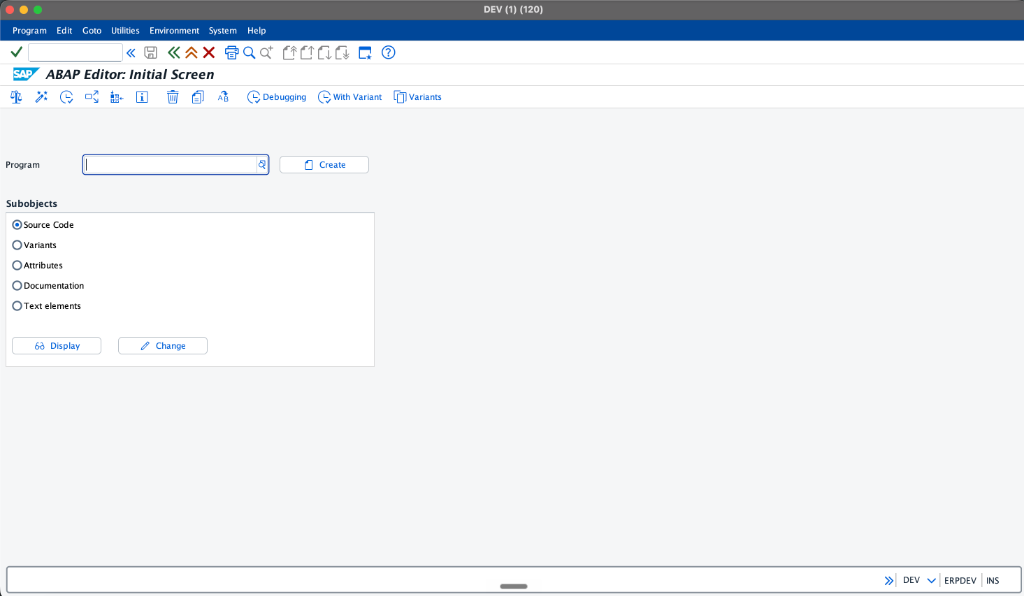 The initial screen of the ABAP Editor (SE38) before entering a program name.
Step 3: Name Your Custom Program
In the Program field, enter your program name.
⚠️ Important Naming Rule: Every custom program, table, or domain in SAP must start with the letter
ZorY. Standard names are reserved for SAP’s built-in applications.Example Name:
Z_FIRST_ABAP_PROGRAM
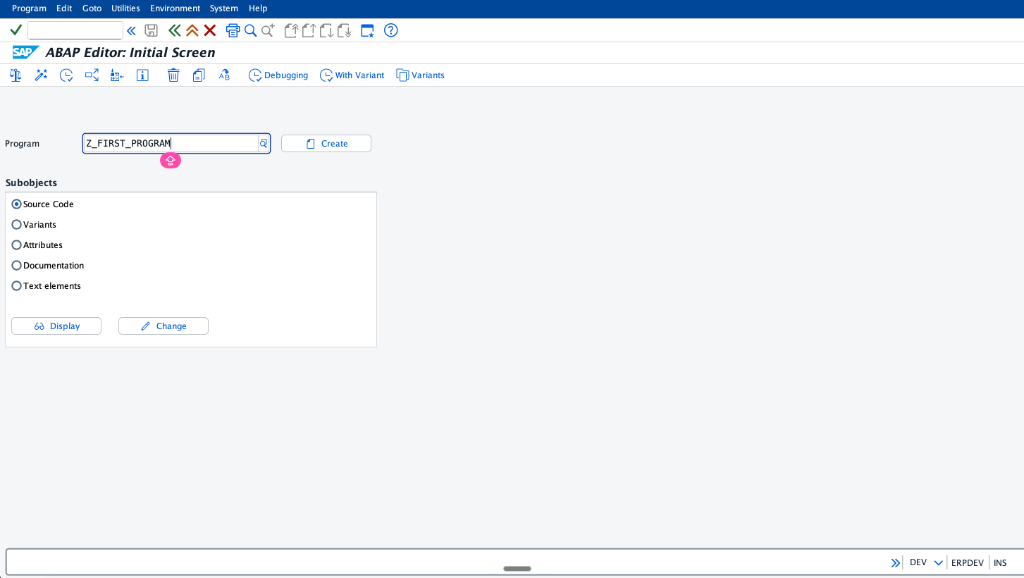 Entering our custom program name starting with ‘Z’ in the Program input field.
Step 4: Click the “Create” Button
Type the name and click Create (or press the F5 key). A popup dialog window will appear asking for the program’s attributes.
Step 5: Define Program Attributes
Enter the details as shown below:
- Title:
My First Hello World Program - Type: Select Executable program from the dropdown menu.
- Click Save.
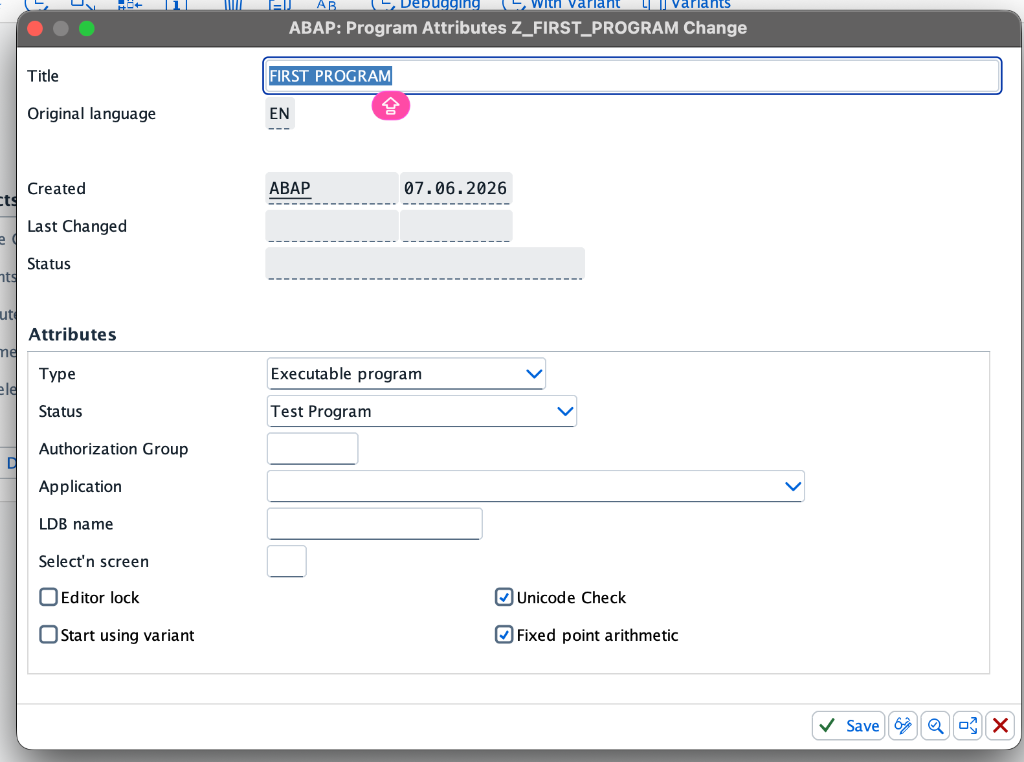 Defining the program title and setting the type as Executable program in the Attributes popup window.
Step 6: Save to Local Objects
SAP will ask you to assign a development package.
- For practicing and learning, click Local Object (or assign it to the
$TMPpackage). - This ensures your program is stored locally without generating a Transport Request (TR), meaning you don’t need to migrate it to production.
Writing the Code
Once the ABAP Editor screen opens, delete any default comments if you wish, and type the following statements:
REPORT z_first_abap_program.

* Write Statement to display output
WRITE 'Hello World! Welcome to SAP ABAP Daily.'.
Line-by-Line Code Explanation:
REPORT z_first_abap_program.
- Every executable program in ABAP must start with the
REPORTkeyword, followed by the program name and a period (.).
* Write Statement...
- Any line starting with an asterisk (
*in column 1) or characters after a double quote (") is treated as a comment and ignored by the compiler.
WRITE 'Hello World!...'.
- The
WRITEstatement outputs characters or variable values to the user screen. Texts must be enclosed in single quotes.
Understanding Your ABAP Code Structure
Before checking and running the code, let’s look at it visually inside the ABAP code editor.
💡 Interactive Code Assistant: Hover over or tap the blue pulse indicator dots on the screenshot below to learn what each section of your code does!
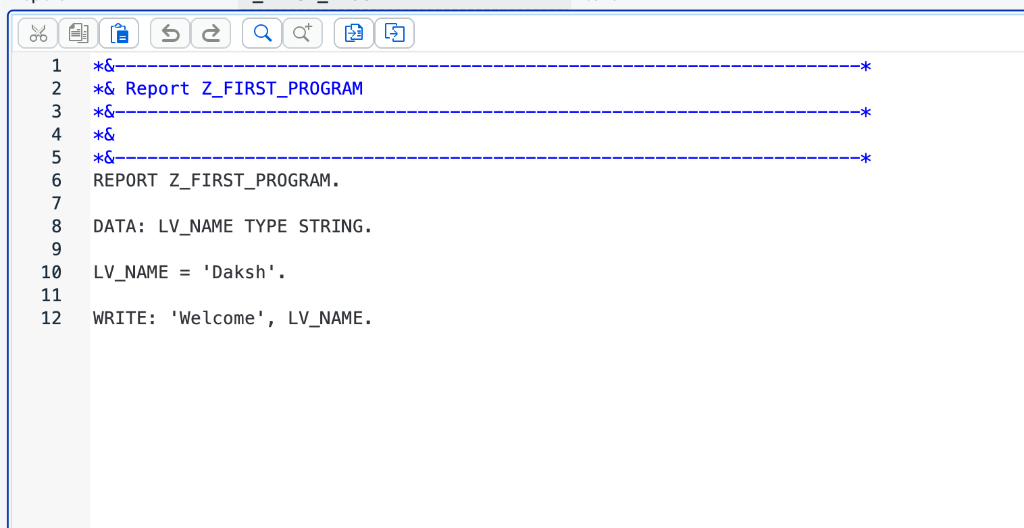
LV_NAME of type STRING.
'Daksh' into the variable.
Saving, Syntax Checking, Activating, and Running
To execute your program, you must follow the standard SAP Developer lifecycle in this exact order:
graph TD
 A[1. Save / Ctrl + S] --> B[2. Check Syntax / Ctrl + F2]
 B --> C[3. Activate / Ctrl + F3]
 C --> D[4. Execute / F8]
1. Save (Ctrl + S)
Click the disk icon or press Ctrl + S to save your latest changes to the database.
2. Check Syntax (Ctrl + F2)
Click the Check button or press Ctrl + F2. If you made a mistake (like forgetting a period), SAP will show a syntax error at the bottom of the screen.
3. Activate (Ctrl + F3)
Click the matchbox/wand icon or press Ctrl + F3. Select your program name and click confirm.
🚫 Common Trap: Many beginners save and check their code, but forget to Activate it. An inactive program will run its old saved version, or fail to run at all!
4. Execute (F8)
Click the clock icon with a checkmark or press F8 to run your program. A new screen will open showing your output:
Hello World! Welcome to SAP ABAP Daily.Expanding the Program: Variables and Multiple Lines
Let us look at two slightly more advanced examples to illustrate how to write multiline reports and manipulate variables.
Example 1: Multiline Outputs using /
By default, consecutive WRITE statements print text side-by-side. To move to a new line, use the forward slash (/) symbol.
REPORT z_first_abap_program.

WRITE 'Welcome to SAP ABAP Training.'.
WRITE / 'Line 2: This is output on a new line.'.
WRITE / 'Line 3: Learning ABAP step-by-step.'.
Example 2: Declaring Variables with DATA
Variables store data temporarily in the application memory. Here is how we declare, assign, and output a string variable:
REPORT z_first_program.

DATA: lv_name TYPE string.

lv_name = 'Daksh'.

WRITE: 'Welcome', lv_name.
When you execute this code, the output screen displays the concatenated variable results:
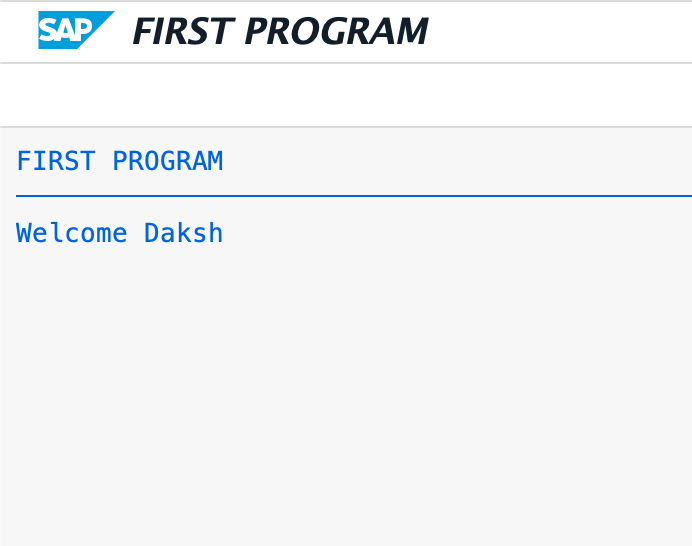 The execution output showing ‘Welcome Daksh’ on the report screen.
💡 Best Practice: Notice the prefix
lv_in the variable name. In ABAP development,lv_stands for Local Variable,lt_stands for Local Table, andls_stands for Local Structure. Adhering to these conventions keeps your programs clean and readable!
Practice Checkpoints (Test Your Knowledge)
Use these interactive cards to review what you have learned:
🙋♂️ Checkpoint 1: Why must custom program names start with Z or Y?
🙋♂️ Checkpoint 2: What happens if you run a program without activating it first?
🙋♂️ Checkpoint 3: What is the meaning of the colon (:) after the WRITE keyword?
Common Mistakes Beginners Make
- Forgetting the Period (
.): Every statement in ABAP must end with a period. Leaving it out leads to immediate syntax errors. - Missing Activation: If your program runs but doesn’t show your latest edits, verify if you activated it (
Ctrl + F3). - Invalid Namespaces: Creating programs named
FIRST_PROG(without Z or Y prefix) will fail as SAP will display a permission error.
Conclusion & Next Steps
Congratulations! You have successfully written, compiled, activated, and run your first SAP ABAP program.
Now that you have mastered the basics of transaction SE38 and screen outputs using WRITE, you are ready to study:
- Conditional statements (
IF...ELSE) - Data looping (
LOOP AT...ENDLOOP) - Querying databases (
SELECTstatements) - Creating custom tables using SE11
Happy Coding!

Written by Daksh Dedha
SAP Technical ConsultantDaksh is an SAP Technical Consultant specializing in ABAP programming, SAP S/4HANA migrations, Fiori development, and BTP cloud architecture. He authors free, hands-on tutorials to make enterprise SAP education accessible to all developers.
Test Your Knowledge
Loading question...
Quiz Completed
Related Tutorials
SAP ABAP Enhancement Framework — User Exits, BADIs, and Enhancement Points
Master SAP ABAP enhancements. Learn User Exits, Customer Exits, BADIs, Enhancement Points, and Implicit/Explicit Enhancement Spots to modify standard SAP without modifying source code.
ABAP ProgrammingABAP CDS Views — Core Data Services Complete Guide for Beginners
Learn ABAP CDS Views from scratch. Understand how to create CDS views in Eclipse ADT, use annotations, associations, parameters, and build OData services with CDS.
ABAP ProgrammingMessage Handling in SAP ABAP — Complete SE91 Message Classes Guide
Master SAP ABAP message handling. Learn how to create message classes in transaction SE91, use the MESSAGE statement, handle error types A E W I S X, and pass placeholders.
Found this tutorial useful? Share it with your SAP development team.