
PARAMETERS Statement in ABAP – Complete Beginner Guide with Examples
Table of Contents
- • What is the PARAMETERS Statement in ABAP?
- • Why Do We Use PARAMETERS?
- • Real-Life Example
- • Basic Syntax of PARAMETERS
- ↳ Breakdown of the Code:
- • Your First Parameter Program
- ↳ How It Works:
- • Naming Conventions for PARAMETERS
- ↳ Examples:
- • Standard Parameter Declarations
- ↳ 1. Character Fields (Fixed Length)
- ↳ 2. Dates
- ↳ 3. Times
- • Advanced PARAMETERS Configurations
- ↳ 1. Default Values (DEFAULT)
- ↳ 2. Mandatory Fields (OBLIGATORY)
- ↳ 3. Checkboxes (AS CHECKBOX)
- ↳ 4. Radio Buttons (RADIOBUTTON GROUP)
- ↳ 5. Retaining Lowercase Input (LOWER CASE)
- ↳ 6. Linking to Memory IDs (MEMORY ID)
- • Chaining Multiple Input Fields
- • Practical Examples
- ↳ 1. Controlling Program Logic with Inputs
- ↳ 2. Performing Calculations on User Inputs
- • Video Tutorial
- • Difference Between DATA and PARAMETERS
- • Common Mistakes Beginners Make
- ↳ 1. Exceeding the 8-Character Name Limit
- ↳ 2. Using DATA Instead of PARAMETERS
- ↳ 3. Forgetting Input Validations
- • Interactive Checkpoints
- • Summary
When writing reports in SAP ABAP, parameter declarations are one of the first concepts you will encounter. You will use the PARAMETERS statement to accept inputs directly from users before executing a program.
Real-world users need to filter report data by entering an Employee ID, Material Number, or Date Range. Instead of hardcoding these values, developers use the PARAMETERS statement to automatically generate input fields on the SAP selection screen.
In this guide, we will explore how parameters work, why they are used, selection screen syntax, practical examples, and best practices for beginners.
What is the PARAMETERS Statement in ABAP?
The PARAMETERS statement declares variables that also function as selection screen input fields. It allows users to supply their own filter criteria before running the program.
This makes ABAP reports dynamic and interactive, rather than forcing users to run reports on static, hardcoded datasets.
Why Do We Use PARAMETERS?
Imagine a report designed to show employee details. If the Employee ID is hardcoded (for example, lv_empid = 1001), the report will always display information for Employee 1001. This is not practical for business users.
Declaring an input field using the PARAMETERS statement lets users query any Employee ID. This simple change makes your program flexible, reusable, and ready for production.
Real-Life Example
Suppose an HR manager needs to audit employee records. Instead of writing separate programs for each employee, developers create a single report with a parameter input field. The manager enters 1001, 1002, or 1003, and the report dynamically fetches the corresponding details.
Basic Syntax of PARAMETERS
The basic syntax for parameter declarations is:
PARAMETERS parameter_name TYPE data_type.Let’s look at an example:
PARAMETERS p_name TYPE string.Breakdown of the Code:
PARAMETERS: The keyword that initiates the selection screen input field.p_name: The name of the parameter. In ABAP, custom parameters are limited to 8 characters in length.TYPE: The keyword defining the data type.string: The data type of the input (in this case, text).
Your First Parameter Program
Here is a simple executable program that takes a user’s name and prints a welcome message:
REPORT z_parameter_example.

* Create the input parameter
PARAMETERS p_name TYPE string.

* Display the captured value
WRITE: 'Welcome', p_name.
How It Works:
- When you execute the program (by pressing
F8), SAP pauses and displays a selection screen containing thep_nameinput field. - The user types
'Daksh'into the field and clicks Execute. - The program resumes execution, capturing
'Daksh'and printing:
Welcome DakshNaming Conventions for PARAMETERS
ABAP developers use the prefix p_ for parameters to distinguish them from local variables (lv_) and global variables (gv_). Since parameter names are strictly limited to 8 characters, keeping names short and clear is essential.
Examples:
PARAMETERS p_empid TYPE i.    " Employee ID (Integer)
PARAMETERS p_matnr TYPE mara-matnr.  " Material Number (LIKE database field)
PARAMETERS p_date TYPE d.    " Selection Date
Standard Parameter Declarations
Here are examples of parameters declared using different ABAP data types:
1. Character Fields (Fixed Length)
Useful for codes, IDs, or short text inputs:
REPORT z_char_parameter.
PARAMETERS p_city TYPE c LENGTH 20.
WRITE: 'City:', p_city.
2. Dates
Automatically renders a date-picker widget on the selection screen:
REPORT z_date_parameter.
PARAMETERS p_date TYPE d.
WRITE: 'Selected Date:', p_date.
3. Times
Creates an input field optimized for time values (HHMMSS):
REPORT z_time_parameter.
PARAMETERS p_time TYPE t.
WRITE: 'Selected Time:', p_time.
Advanced PARAMETERS Configurations
The PARAMETERS statement supports additions that modify how input fields behave on the selection screen:
1. Default Values (DEFAULT)
You can pre-fill an input field with a default value that users can change if needed:
PARAMETERS p_cntry TYPE string DEFAULT 'India'.2. Mandatory Fields (OBLIGATORY)
Forces the user to populate the field. SAP will display a small red checkmark and block execution if the field is left empty:
PARAMETERS p_empid TYPE i OBLIGATORY.3. Checkboxes (AS CHECKBOX)
Renders a checkbox on the screen. If checked, the variable stores the value 'X'; if unchecked, it remains blank:
PARAMETERS p_test AS CHECKBOX.4. Radio Buttons (RADIOBUTTON GROUP)
Groups mutually exclusive choices together. Only one radio button in a group can be selected at a time:
PARAMETERS: p_male RADIOBUTTON GROUP g1 DEFAULT 'X',
   p_female RADIOBUTTON GROUP g1.
5. Retaining Lowercase Input (LOWER CASE)
By default, SAP automatically converts selection screen inputs into uppercase. To preserve the exact casing typed by the user, add the LOWER CASE addition:
PARAMETERS p_name TYPE string LOWER CASE.6. Linking to Memory IDs (MEMORY ID)
Links the input field to SAP global memory. If the user previously searched for a Company Code in another transaction, the field will automatically load that value:
PARAMETERS p_bukrs TYPE bukrs MEMORY ID buk.Chaining Multiple Input Fields
You can declare multiple input fields together using the colon (:) operator:
REPORT z_multi_parameters.

PARAMETERS: p_name TYPE string LOWER CASE,
   p_age TYPE i,
   p_city TYPE string DEFAULT 'Delhi'.

WRITE: / 'Name:', p_name,
  / 'Age :', p_age,
  / 'City:', p_city.
Practical Examples
1. Controlling Program Logic with Inputs
This example uses a parameter input to drive conditional logical statements (IF / ELSE):
REPORT z_logic_demo.

PARAMETERS p_age TYPE i OBLIGATORY.

START-OF-SELECTION.
 IF p_age >= 18.
 WRITE 'User is eligible to proceed.'.
 ELSE.
 WRITE 'User is not eligible (underage).'.
 ENDIF.
2. Performing Calculations on User Inputs
Let’s look at how we can capture two numbers, perform a calculation, and print the output:
REPORT z_calc_demo.

PARAMETERS: p_num1 TYPE i OBLIGATORY,
   p_num2 TYPE i OBLIGATORY.

DATA lv_total TYPE i.

START-OF-SELECTION.
 lv_total = p_num1 + p_num2.
 WRITE: 'Result of calculation:', lv_total.
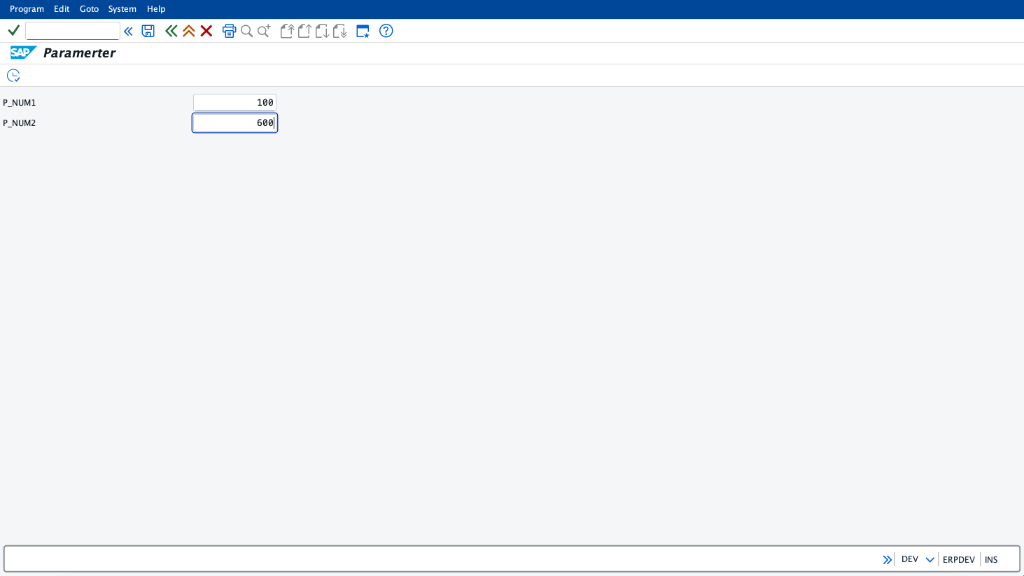
Selection Screen Input:
The user enters 100 for P_NUM1 and 600 for P_NUM2:
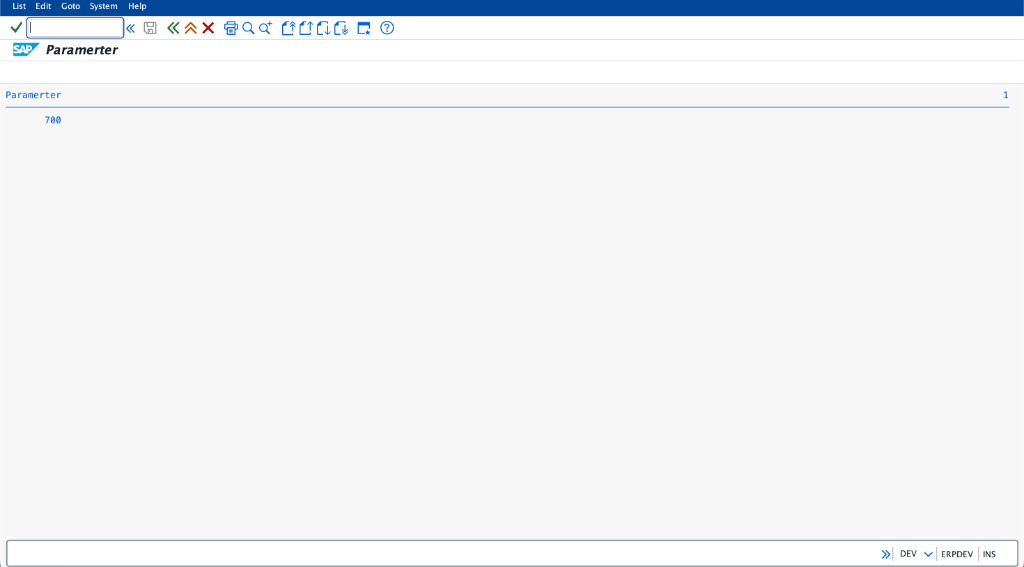
Execution Output:
The program processes the inputs, adds them, and displays 700 as the result:
Video Tutorial
Watch this hands-on video demonstration to see how parameters are created, configured, and processed inside the ABAP editor:
Difference Between DATA and PARAMETERS
Beginners often confuse DATA and PARAMETERS because both declare variables. However, they serve distinct purposes:
| Feature | DATA Statement | PARAMETERS Statement |
|---|---|---|
| Primary Purpose | Declares internal variables for program processing. | Creates interactive input fields on selection screen. |
| User Visibility | Hidden. Variables are processed behind the scenes in memory. | Visible. Fields are displayed on the screen before execution. |
| Source of Values | Assigned programmatically (e.g., lv_total = 10). | Provided directly by the user typing on the screen. |
| Variable Syntax | DATA lv_name TYPE string. | PARAMETERS p_name TYPE string. |
Common Mistakes Beginners Make
Avoid these common syntax and configuration errors:
1. Exceeding the 8-Character Name Limit
Parameter names cannot exceed 8 characters due to SAP database limits.
- Incorrect:
PARAMETERS p_employeename TYPE string. - Correct:
PARAMETERS p_empnam TYPE string.
2. Using DATA Instead of PARAMETERS
If you declare an input variable using DATA, it will not render on the screen.
- Incorrect:
DATA p_empid TYPE i.(No selection field will appear) - Correct:
PARAMETERS p_empid TYPE i.
3. Forgetting Input Validations
Always validate user input (e.g., checking if values are negative or out of bounds) before performing calculations or running queries.
Interactive Checkpoints
Test your understanding of PARAMETERS statement with these self-assessment cards:
🙋♂️ Checkpoint 1: What is the limit on parameter name lengths in ABAP and why?
🙋♂️ Checkpoint 2: How can you make a checkbox parameter checked by default?
🙋♂️ Checkpoint 3: What is the difference between PARAMETERS and SELECT-OPTIONS?
Summary
The PARAMETERS statement is the cornerstone of interactive reporting in SAP ABAP. It enables developers to capture discrete user inputs, design dynamic filters, configure checkboxes and radio buttons, and control program flows. Master parameter configurations alongside naming conventions, and you will be ready to build professional, user-friendly SAP business reports.

Written by Daksh Dedha
SAP Technical ConsultantDaksh is an SAP Technical Consultant specializing in ABAP programming, SAP S/4HANA migrations, Fiori development, and BTP cloud architecture. He authors free, hands-on tutorials to make enterprise SAP education accessible to all developers.
Test Your Knowledge
Loading question...
Quiz Completed
Related Tutorials
SAP ABAP Enhancement Framework — User Exits, BADIs, and Enhancement Points
Master SAP ABAP enhancements. Learn User Exits, Customer Exits, BADIs, Enhancement Points, and Implicit/Explicit Enhancement Spots to modify standard SAP without modifying source code.
ABAP ProgrammingABAP CDS Views — Core Data Services Complete Guide for Beginners
Learn ABAP CDS Views from scratch. Understand how to create CDS views in Eclipse ADT, use annotations, associations, parameters, and build OData services with CDS.
ABAP ProgrammingMessage Handling in SAP ABAP — Complete SE91 Message Classes Guide
Master SAP ABAP message handling. Learn how to create message classes in transaction SE91, use the MESSAGE statement, handle error types A E W I S X, and pass placeholders.
Found this tutorial useful? Share it with your SAP development team.