
How to Create a Structure in SAP ABAP (SE11) – Step-by-Step Guide
Table of Contents
- • What is a Structure in SAP ABAP?
- • Why Do We Use Structures in SAP ABAP?
- • Real-Life Example
- • Structures vs. Database Tables
- • Prerequisites
- • Steps to Create a Structure in SAP ABAP
- ↳ Step 1: Open Transaction SE38/SE11
- ↳ Step 2: Select Data Type Option
- ↳ Step 3: Enter Structure Name
- ↳ Step 4: Click Create
- ↳ Step 5: Enter Short Description
- ↳ Step 6: Add Fields
- ↳ Step 7: Save the Structure
- ↳ Step 8: Check Syntax
- ↳ Step 9: Activate the Structure
- • Video Tutorial
- • How Structures Are Used in ABAP Programs
- • Structures in Internal Tables
- • Interactive Checkpoints
- • Advantages of Using Structures
- • Best Practices
How to Create a Structure in SAP ABAP (SE11) – Step-by-Step Guide
When learning SAP ABAP, you will encounter terms like Domain, Data Element, Table, and Structure. Once you understand domains and data elements, the next critical concept to master is the Structure.
Structures in SAP ABAP are widely used because they help developers group related fields together without writing data to the physical database.
In this guide, we will explore what structures are, why they are used, how they differ from database tables, and how to create them in SAP using transaction code SE11.
What is a Structure in SAP ABAP?
A Structure is a collection of fields grouped under a single definition. It organizes related data fields but does not store any records physically in the database. Think of a structure as a reusable data template or blueprint.
For example, to represent employee information, you might need:
- Employee ID
- Employee Name
- Department
- Salary
Instead of defining these fields manually in every program, you can define a single structure in the ABAP Dictionary and reference it wherever needed.
Why Do We Use Structures in SAP ABAP?
Structures improve development efficiency and maintain consistency across SAP applications. They help developers:
- Reuse field definitions across multiple programs.
- Group related fields together logically.
- Reduce coding effort and duplicate definitions.
- Improve readability of programs.
- Maintain consistency across different reports and forms.
Structures in SAP ABAP are heavily used in:
- ABAP Reports
- Internal Tables
- Work Areas
- Function Modules (parameters)
- Smart Forms & Adobe Forms
- BAPIs & Interfaces
Real-Life Example
Imagine a company wants to store employee-related information. Instead of defining fields individually every time, a Structure can be created with:
EMP_IDEMP_NAMEDEPARTMENTSALARY
Now, this Structure can be referenced in multiple programs and reports. This saves development time and ensures all programs follow the same format.
Structures vs. Database Tables
Many beginners confuse Structures in SAP ABAP with Tables. Although both contain fields, they serve completely different purposes:
| Feature | Structure in SAP ABAP | Database Table |
|---|---|---|
| Data Storage | Does not store data. | Stores data physically in the database. |
| Records | Cannot contain database records. | Contains rows of database records. |
| Physical Table | No physical database table exists. | A physical database table is created. |
| Usage | Used for local screen templates, programs, and reports. | Used for permanent, persistent data storage. |
In other words:
- A Structure defines how data should look in memory.
- A Table actually stores the data.
Prerequisites
Before creating a Structure, ensure that:
- SAP GUI is installed and configured.
- You can log in to your SAP development system.
- The required Domains and Data Elements already exist (or you can use SAP’s standard built-in Data Elements).
Steps to Create a Structure in SAP ABAP
Step 1: Open Transaction SE38/SE11
Log in to SAP, enter transaction code SE11 in the command field, and press Enter. The ABAP Dictionary initial screen will appear.
Step 2: Select Data Type Option
On the SE11 screen, click the radio button next to Data type. This option is used for creating Structures, Data Elements, and Table Types in SAP.
Step 3: Enter Structure Name
Enter a custom Structure name.
⚠️ Naming Rules: Custom developer objects must always start with
ZorY. This distinguishes custom developments from standard SAP objects.Example Name:
ZSTR_EMPLOYEE_1
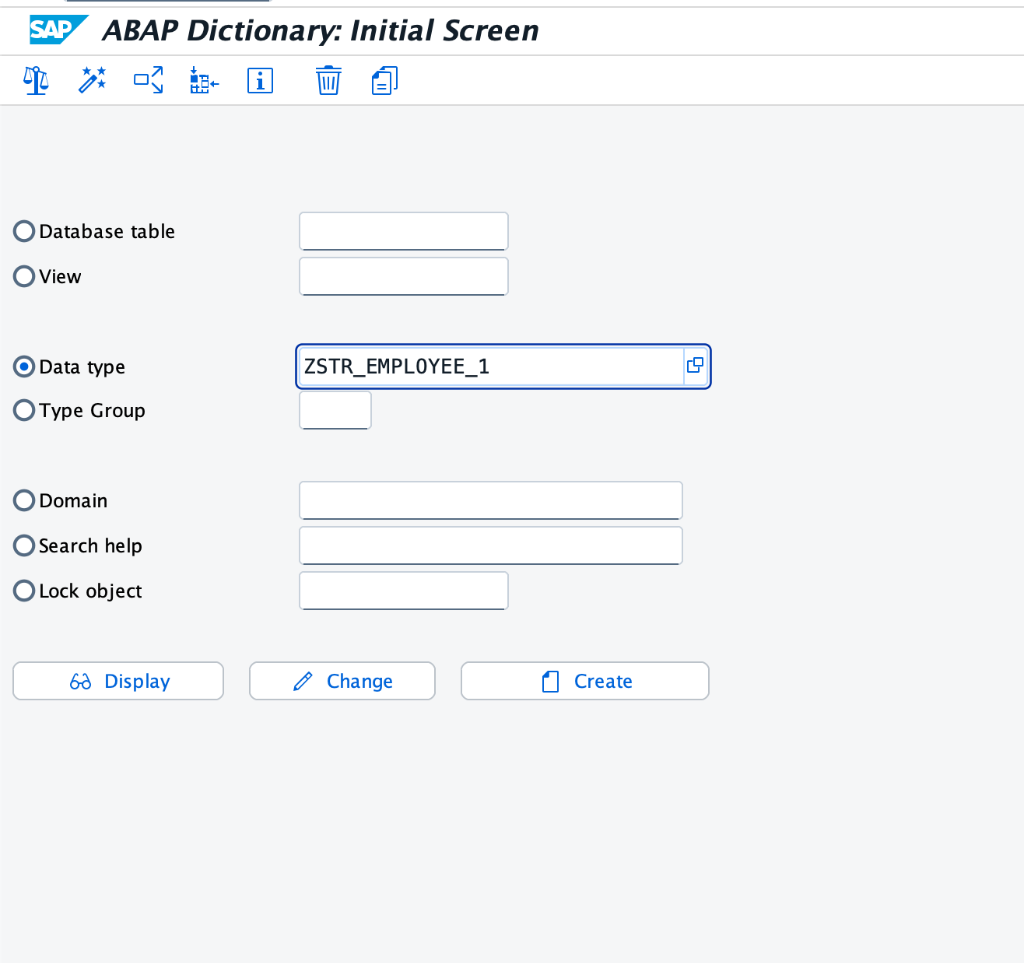 Select the Data type option and type your custom structure name in transaction SE11.
Step 4: Click Create
Click the Create button. SAP will display a popup asking for the type of Data Type you wish to create. Select Structure and click the green checkmark (Continue).
Step 5: Enter Short Description
Provide a description for your structure in the Short Description field (e.g., Employee Structure in SAP ABAP). This helps identify the object’s purpose later.
Step 6: Add Fields
Add the required fields in the table grid. Define components and their data elements:
- Component:
EMP_ID$\rightarrow$ Component Type:ZEMPID_DE - Component:
EMP_NAME$\rightarrow$ Component Type:ZEMPNAME_DE - Component:
DEPARTMENT$\rightarrow$ Component Type:ZEMPDEP_DE - Component:
SALARY$\rightarrow$ Component Type:ZEMPSALARY_DE
Step 7: Save the Structure
Click the Save icon or press Ctrl + S. When SAP prompts you for a package, choose Local Object (or $TMP) for local practice.
Step 8: Check Syntax
Click the Check icon or press Ctrl + F2 to run a syntax check. SAP validates the structure’s definition.
Step 9: Activate the Structure
Click the Activate icon or press Ctrl + F3 and confirm. Your structure is now active and ready to be used in programs.
Video Tutorial
If you prefer to watch the step-by-step configuration, check out our comprehensive video guide below:
How Structures Are Used in ABAP Programs
Structures are frequently used to declare a Work Area in programs. A Work Area is a single row of memory that holds data temporarily.
REPORT z_use_structure_demo.

* Declare a work area based on our structure
DATA: ls_employee TYPE zemployee_str.

* Assign values to individual fields
ls_employee-emp_id  = '10001'.
ls_employee-emp_name = 'Daksh'.
ls_employee-department = 'ABAP DEV'.
ls_employee-salary  = 95000.

* Output the fields
WRITE: 'Employee ID:', ls_employee-emp_id,
  / 'Employee Name:', ls_employee-emp_name,
  / 'Department:', ls_employee-department,
  / 'Salary:', ls_employee-salary.
Structures in Internal Tables
Structures are also used to define the layout of Internal Tables (in-memory arrays of multiple rows):
REPORT z_use_structure_demo_2.

* Declare an internal table based on our structure
DATA: lt_employee TYPE TABLE OF zemployee_str.
Every row of lt_employee will follow the exact field layout defined in the structure.
Interactive Checkpoints
Review these self-assessment cards to solidify your understanding:
🙋♂️ Checkpoint 1: Can you store data records inside an ABAP structure?
🙋♂️ Checkpoint 2: What is the difference between a Work Area and a Structure?
Advantages of Using Structures
- Reusability: Define once in SE11 and reference in hundreds of programs.
- Better Organization: Grouping related variables keeps program declarations clean.
- Faster Development: Avoids recreating common data blocks in code.
- Easy Maintenance: Modifying a structure propagates changes automatically to all dependent programs.
- Consistency: Ensures different applications process the same business entities identically.
Best Practices
- Prefix custom structures with
ZorY(e.g.,ZSTR_EMPLOYEE). Adding a suffix like_STRor_Shelps identify the object type immediately. - Write clear descriptions so other developers understand the structure’s purpose.
- Reuse existing data elements for components to keep semantic labels consistent.
- Activate the object (
Ctrl + F3) after creation; otherwise, you cannot reference it in the ABAP Editor.

Written by Daksh Dedha
SAP Technical ConsultantDaksh is an SAP Technical Consultant specializing in ABAP programming, SAP S/4HANA migrations, Fiori development, and BTP cloud architecture. He authors free, hands-on tutorials to make enterprise SAP education accessible to all developers.
Test Your Knowledge
Loading question...
Quiz Completed
Related Tutorials
Table Maintenance Generator in SAP ABAP: Step-by-Step Guide
Learn how to create a Table Maintenance Generator (TMG) in SAP ABAP using transaction code SE11, maintain data with SM30, and avoid common mistakes.
Data DictionarySE11 Transaction Code in SAP ABAP: Complete ABAP Dictionary Guide
Master the fundamentals of the SE11 transaction code in SAP ABAP. Learn how to navigate the ABAP Dictionary, create tables, domains, views, search helps, and lock objects.
Data DictionaryIntroduction to SAP ABAP Dictionary (SE11)
Master the fundamentals of the ABAP Dictionary (Data Dictionary), database tables (Transparent, Pooled, Cluster), domains, data elements, and relationships.
Found this tutorial useful? Share it with your SAP development team.