
SAP Fiori Development Complete Guide — How to Build, Deploy and Extend Fiori Apps Like a Pro in 2026
Table of Contents
- • Quick Recap — What Fiori Actually Is
- • The Three Types of Fiori Apps — Know This Before Building Anything
- ↳ Type 1 — Transactional Apps
- ↳ Type 2 — Analytical Apps
- ↳ Type 3 — Fact Sheet Apps
- • The Fiori Development Stack — Full Picture
- • Layer 1 — The Frontend: SAPUI5 and Fiori Elements
- ↳ What Are Fiori Elements?
- • Layer 2 — The API Layer: OData Services
- ↳ OData V2 vs OData V4
- • Layer 3 — The Backend: ABAP RAP
- ↳ CDS Views — Data Model
- ↳ Behavior Definition — Business Logic
- ↳ Behavior Implementation Class
- • Interactive Fiori elements annotation simulator
- • Layer 4 — Fiori Launchpad: Where Apps Live
- ↳ Launchpad Configuration involves:
- • Extending Standard SAP Fiori Apps — The Real Project Work
- ↳ Three Extension Approaches:
- • Fiori Development Environment — Tools You Need
- • Common Fiori Development Mistakes and How to Avoid Them
- • SAP Fiori Developer Career Path — What the Market Looks Like
- • Free Resources to Learn Fiori Development Right Now
- • The Bigger Picture
- • Self-Assessment Checkpoint
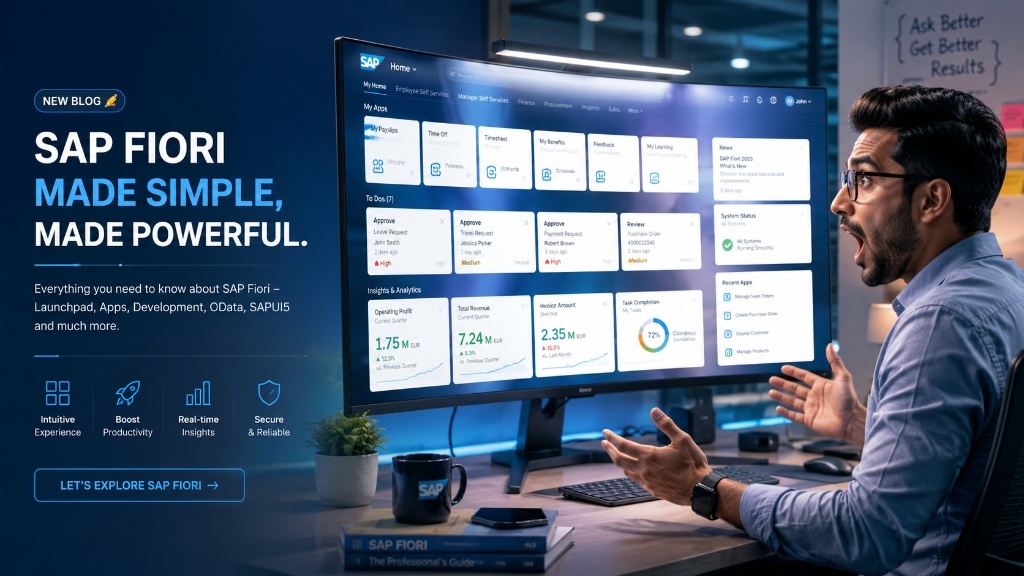 Figure 1: SAP Fiori serves as the modern cloud-ready design language and front-end framework for enterprise applications.
Alright so if you’ve been following this blog series — we’ve covered SAP BTP, Integration Suite, and SAP Joule in the last three posts.
Every single one of those topics eventually circled back to one thing — SAP Fiori.
BTP hosts Fiori apps. Integration Suite powers data that Fiori apps consume. Joule surfaces inside Fiori interface. Everything in modern SAP lands on a Fiori screen eventually.
So this post is the one I should probably have written first — a complete, honest, practical guide to SAP Fiori development. Not just what Fiori is. Not just theory. But how it actually gets built, deployed, extended, and maintained on real projects.
I’ve tried to make this the single most useful Fiori development post on the internet for someone who is either just starting out or trying to level up from basic understanding to actual development capability.
Let’s go properly deep on this.
Quick Recap — What Fiori Actually Is
Before development, thirty seconds of context for anyone jumping into this post fresh.
SAP Fiori is SAP’s user experience framework and application suite — the modern interface layer that sits on top of S/4HANA and other SAP cloud products. Every standard SAP transaction is being replaced by a Fiori equivalent app. Every new S/4HANA implementation runs Fiori as its primary UI.
From a development perspective — Fiori apps are web applications built using SAPUI5 (SAP’s JavaScript framework), connected to SAP backend through OData services, deployed on SAP BTP or S/4HANA embedded server, and launched through Fiori Launchpad.
That four-part stack — SAPUI5 frontend, OData services, deployment platform, Fiori Launchpad — is what Fiori development actually means in practice. Understanding each part is what this post covers.
The Three Types of Fiori Apps — Know This Before Building Anything
Here’s something that trips up almost every beginner — Fiori isn’t one type of app. There are three at its core different app types and choosing the wrong one for a requirement wastes enormous time.
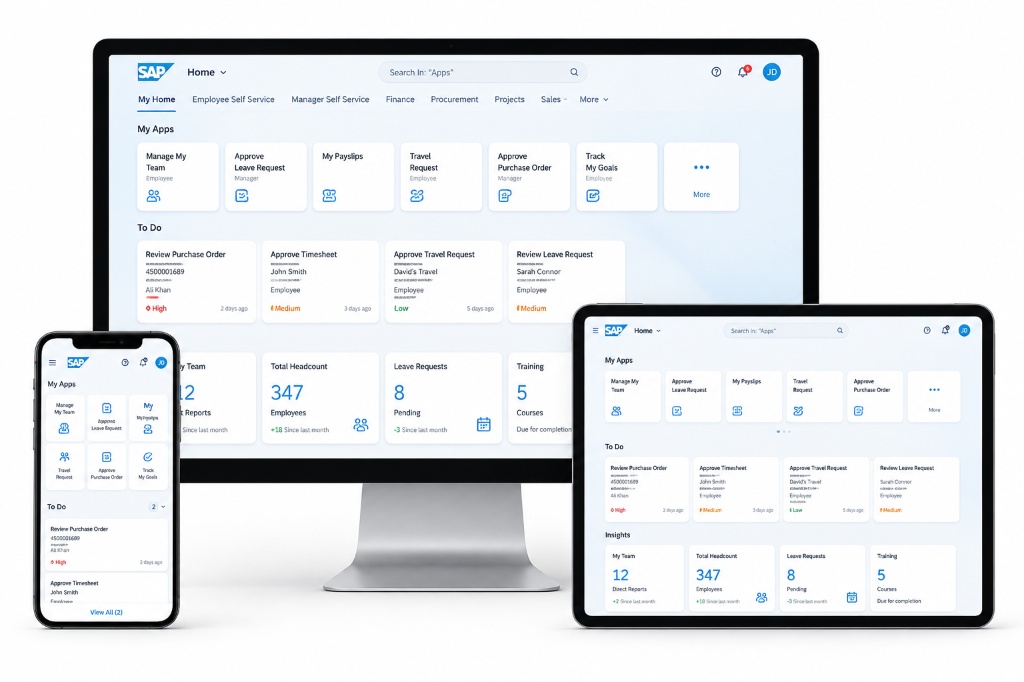 Figure 2: Distinguishing between Transactional, Analytical, and Fact Sheet Fiori templates.
Type 1 — Transactional Apps
Transactional apps are for doing things — creating documents, editing records, approving requests, posting transactions.
- Examples: Create Purchase Order, Post Goods Receipt, Approve Leave Request, Submit Expense Report.
- Technical details: These apps are full SAPUI5 applications — custom views, controllers, navigation flows, form validations, action buttons. They’re the most complex to build from scratch but give maximum flexibility for custom requirements.
- When to build transactional: Any scenario where users need to create, change, or process SAP business documents.
Type 2 — Analytical Apps
Analytical apps are for understanding things — dashboards, KPI monitoring, trend analysis, exception reporting.
- Examples: Revenue Overview Dashboard, Inventory Aging Analysis, Open Purchase Order Monitor, Employee Headcount Analytics.
- Technical details: These are typically built using SAP Analytics Cloud embedded in Fiori, or using Fiori Overview Pages and Analytical List Pages — framework-based approaches that generate rich analytical UIs with significantly less custom code.
- When to build analytical: Any scenario where users need to monitor, analyze, or get insights from SAP data.
Type 3 — Fact Sheet Apps
Fact sheets are 360-degree views of a specific business object — showing all relevant information about a customer, material, vendor, or employee in one consolidated screen.
- Examples: Customer Fact Sheet (open orders, recent invoices, credit status, contacts), Material Fact Sheet (current stock, open POs, recent GRs), Vendor Fact Sheet.
- Technical details: Fact sheets use Smart Templates and are heavily annotation-driven — meaning much of the UI generates automatically from metadata rather than custom code.
- When to build fact sheets: Any scenario where users need complete context about a specific business object quickly.
The Fiori Development Stack — Full Picture
Now let’s map out exactly what technologies are involved in building a Fiori app from end to end.
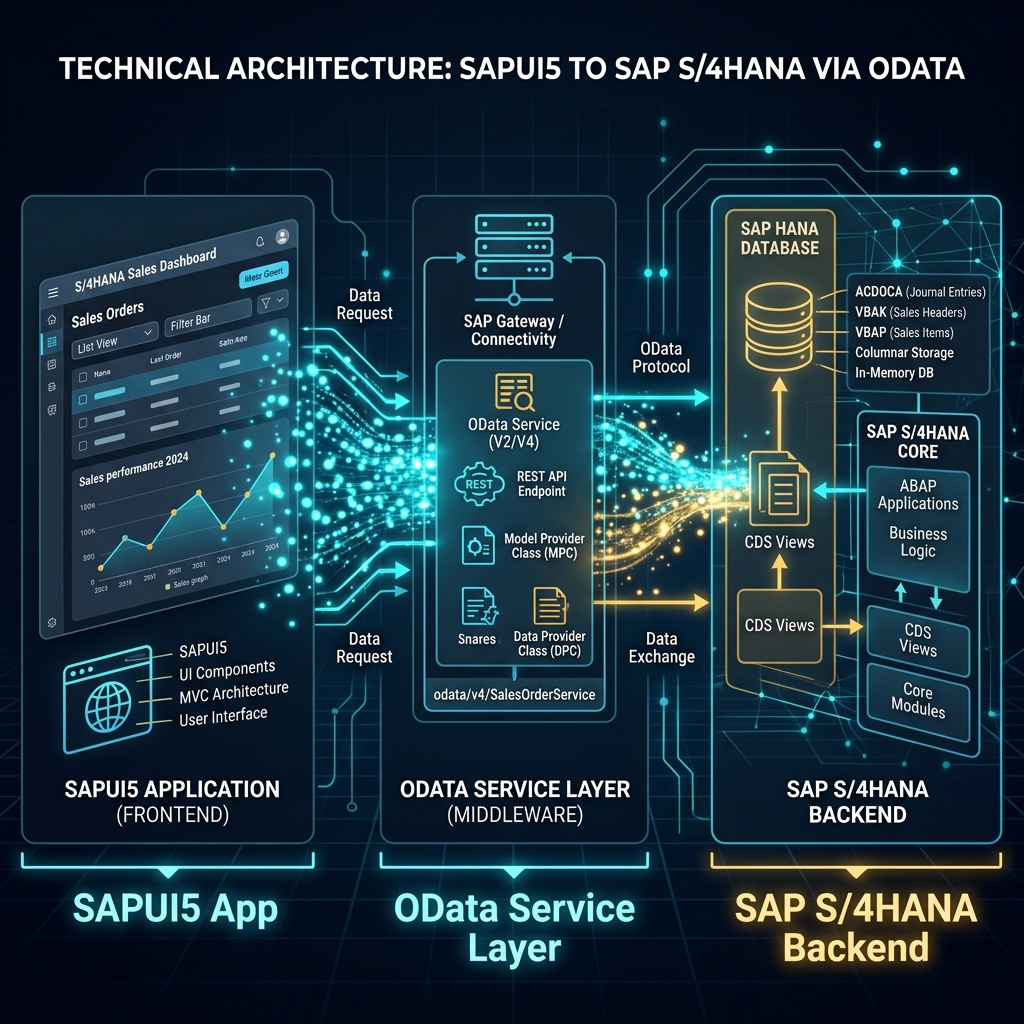 Figure 3: Full-stack communication path from CDS data models to OData API bindings and UI5 render engines.
USER BROWSER
     ↓
SAPUI5 / Fiori Elements (Frontend JavaScript Framework)
     ↓
OData V2 / V4 Service (Data API Layer)
     ↓
ABAP RAP / Gateway (Backend Service Layer)
     ↓
S/4HANA Database — CDS Views / HANA Tables
Each layer has specific technologies and responsibilities. A complete Fiori developer understands all of them — even if they specialize in one.
Layer 1 — The Frontend: SAPUI5 and Fiori Elements
We covered SAPUI5 architecture in detail in an earlier post on this blog. Quick summary for context here — SAPUI5 is SAP’s JavaScript framework for building enterprise web applications. MVC architecture, data binding, pre-built controls, OData model integration.
But in 2026, most professional Fiori development doesn’t start with blank SAPUI5. It starts with Fiori Elements.
What Are Fiori Elements?
Fiori Elements is a framework within SAPUI5 that generates Fiori UI automatically from backend metadata and annotations — dramatically reducing the amount of frontend code you need to write.
Instead of manually building every view, controller, and binding — you define annotations in your ABAP backend that describe what the UI should look like, and Fiori Elements generates the appropriate frontend automatically.
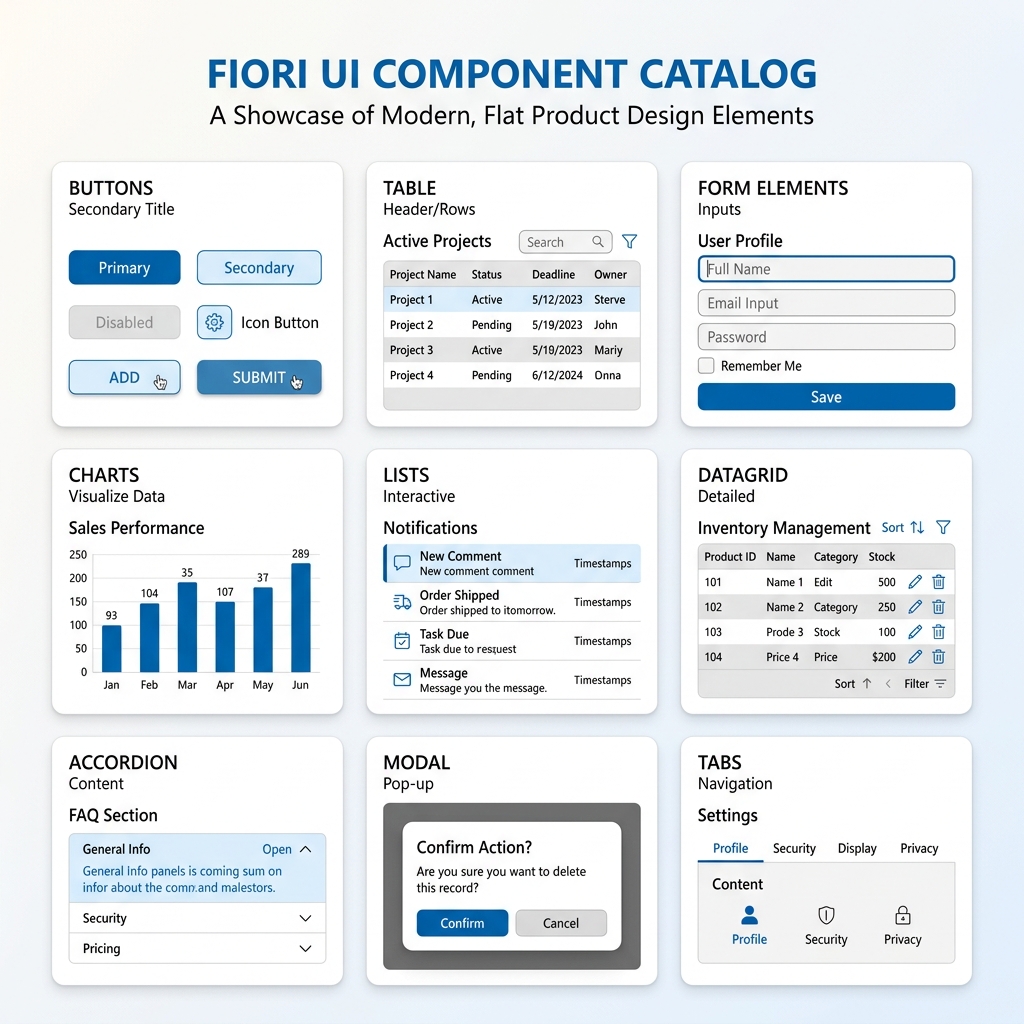 Figure 4: Standard Fiori Elements floorplans: List Report, Object Page, Worklist, and Overview cards.
Four main Fiori Elements floorplans:
- List Report + Object Page — most commonly used combination. List Report shows a searchable, filterable table of business objects. Clicking one opens Object Page showing full details with sections, tabs, and actions.
- Worklist — simpler list-based app without the full filter bar of List Report. Good for task lists and approval queues.
- Overview Page — card-based dashboard showing multiple data streams in one screen. Each card is an independent data source. Great for role-based cockpits.
- Analytical List Page — combines analytical chart at top with interactive list below. Perfect for exception management scenarios where users identify issues visually and drill into details.
Why Fiori Elements matters for development: A List Report + Object Page app that would take 3-4 weeks to build from scratch in custom SAPUI5 takes 3-4 days using Fiori Elements — because the framework handles all standard behavior automatically. Sorting, filtering, navigation, responsive layout, edit/save/cancel flows, validation messages — all built in.
Custom code only needed for genuinely custom requirements — special calculations, non-standard UI behavior, custom actions.
Layer 2 — The API Layer: OData Services
OData (Open Data Protocol) is the standard API protocol connecting Fiori frontend to SAP backend. Every piece of data a Fiori app displays or modifies goes through an OData service.
OData V2 vs OData V4
Two versions exist and knowing the difference matters for project work.
- OData V2 — older standard, still widely used in existing SAP systems and many standard SAP Fiori apps. SAPUI5’s V2 OData Model connects to these services.
- OData V4 — newer, more powerful standard with better batch processing, delta tokens, server-side actions, and type system. RAP-based services use OData V4. New Fiori Elements apps increasingly use V4.
For new development on S/4HANA — OData V4 is the direction. For working with existing systems — V2 knowledge remains essential.
Layer 3 — The Backend: ABAP RAP
RAP — RESTful ABAP Programming Model is how OData V4 services get built in modern S/4HANA ABAP development. We mentioned RAP in earlier posts — this is where it connects directly to Fiori.
A complete RAP backend for a Fiori app involves:
CDS Views — Data Model
CDS (Core Data Services) views define the data model your Fiori app works with. They sit on top of database tables and join tables, mapping UI properties dynamically.
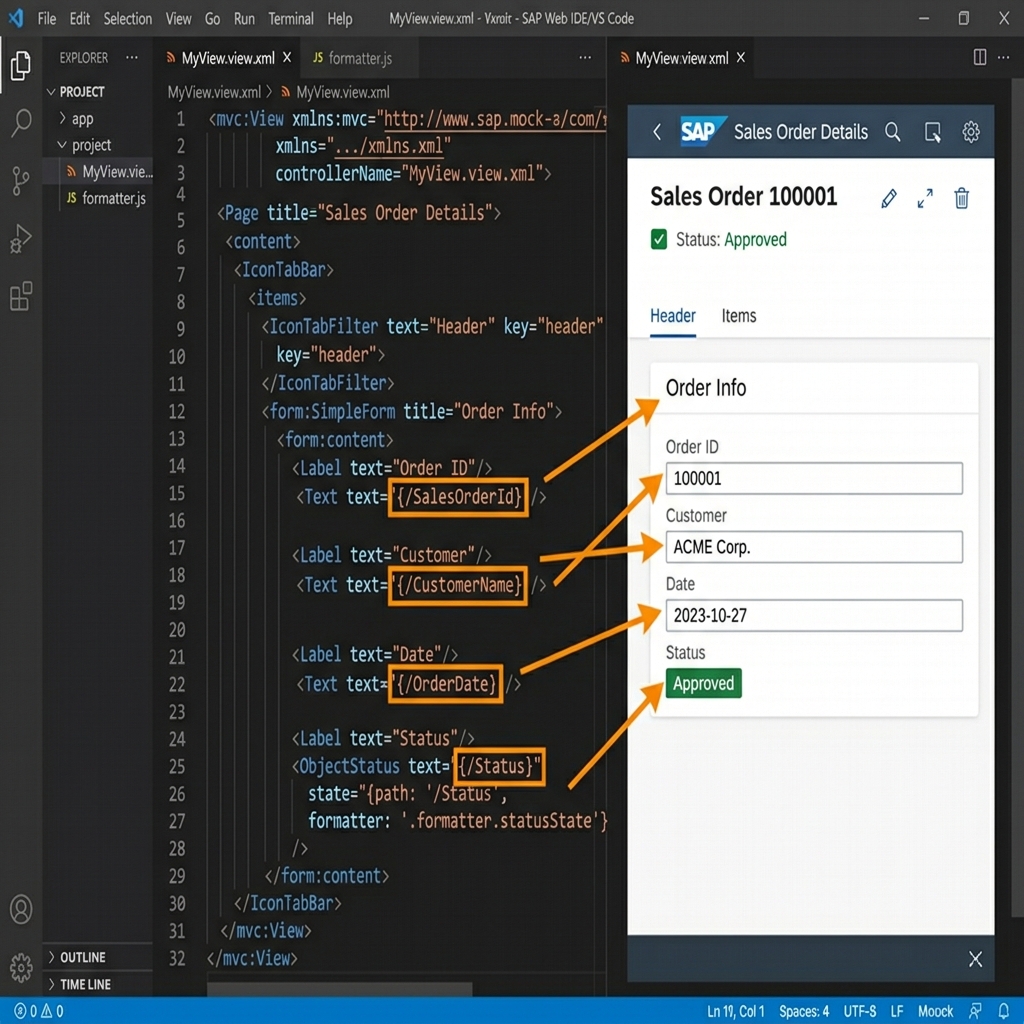 Figure 5: Mapping frontend layout positions directly inside Eclipse ADT ABAP CDS Views using @UI annotations.
@AbapCatalog.sqlViewName: 'ZPURCHORDER'
@AccessControl.authorizationCheck: #CHECK
@EndUserText.label: 'Purchase Order View'

@UI.headerInfo: {
    typeName: 'Purchase Order',
    typeNamePlural: 'Purchase Orders',
    title: { value: 'PurchaseOrder' }
}

define view entity ZC_PurchaseOrder
  as select from ekko
  association [0..*] to ZC_PurchOrderItem
    as _Items on $projection.PurchaseOrder
                 = _Items.PurchaseOrder
{
      @UI.lineItem: [{ position: 10 }]
      @UI.selectionField: [{ position: 10 }]
  key ekko.ebeln        as PurchaseOrder,

      @UI.lineItem: [{ position: 20 }]
      ekko.lifnr        as Vendor,

      @UI.lineItem: [{ position: 30 }]
      ekko.bedat        as OrderDate,

      @UI.lineItem: [{ position: 40 }]
      ekko.netwr        as NetValue,

      @UI.lineItem: [{ position: 50 }]
      ekko.waers        as Currency,

      _Items
}
Those @UI annotations are what Fiori Elements reads to know which fields to show in the list, which to put in filter bar, what the header title should be. You’re configuring the UI from ABAP — without writing a single line of JavaScript.
Behavior Definition — Business Logic
Behavior Definition (BDEF) describes what operations are allowed on your business object:
managed implementation in class
    zbp_purchase_order unique;

define behavior for ZC_PurchaseOrder
    alias PurchaseOrder
{
    create;
    update;
    delete;

    action approvePO result [1] $self;
    action rejectPO  result [1] $self;

    association _Items { create; }

    field ( readonly ) PurchaseOrder;
    field ( mandatory ) Vendor, OrderDate;
}
This definition tells RAP framework:
- Users can create, update, and delete purchase orders
- Two custom actions exist — approvePO and rejectPO
- PO number field is read-only (system generated)
- Vendor and date are mandatory
The framework automatically generates OData operations based on this definition. Fiori app’s Save button, Delete button, and custom action buttons connect directly to these behaviors.
Behavior Implementation Class
CLASS zbp_purchase_order DEFINITION PUBLIC ABSTRACT FINAL
  FOR BEHAVIOR OF ZC_PurchaseOrder.

  PUBLIC SECTION.

  PROTECTED SECTION.

  PRIVATE SECTION.

ENDCLASS.

CLASS zbp_purchase_order IMPLEMENTATION.

  METHOD approvePO.
    " Read purchase orders to approve
    READ ENTITIES OF ZC_PurchaseOrder
      ENTITY PurchaseOrder
      FIELDS ( PurchaseOrder Vendor NetValue )
      WITH CORRESPONDING #( keys )
      RESULT DATA(lt_po).

    " Update status to approved
    MODIFY ENTITIES OF ZC_PurchaseOrder
      ENTITY PurchaseOrder
      UPDATE FIELDS ( ApprovalStatus )
      WITH VALUE #( FOR ls_po IN lt_po (
        %key = ls_po-%key
        ApprovalStatus = 'APPROVED'
      ) ).

    " Return updated records
    READ ENTITIES OF ZC_PurchaseOrder
      ENTITY PurchaseOrder ALL FIELDS WITH
      CORRESPONDING #( keys )
      RESULT DATA(lt_result).

    result = VALUE #( FOR ls_result IN lt_result (
      %key   = ls_result-%key
      %param = ls_result
    ) ).
  ENDMETHOD.

ENDCLASS.
When the Fiori app’s Approve button is pressed — this ABAP method runs. Business logic, validation, database update — all here in ABAP. Fiori app just triggers the action and reflects the result.
Interactive Fiori elements annotation simulator
Configure the metadata annotations below to see how the Fiori Elements List Report UI responds in real-time. Toggling annotations will dynamically update both the generated ABAP CDS views and the resulting frontend preview:
  <div class="flex flex-col gap-3 text-[12px] text-ink">
    <label class="flex items-start gap-2.5 cursor-pointer select-none">
      <input type="checkbox" id="anno-filter" checked class="mt-0.5 cursor-pointer accent-primary" />
      <div>
        <span class="font-semibold text-ink">@UI.selectionField: [{ position: 10 }]</span>
        <p class="text-[10px] text-ink-muted-80 mt-0.5">Renders Vendor filter in search bar.</p>
      </div>
    </label>

    <label class="flex items-start gap-2.5 cursor-pointer select-none border-t border-hairline/60 pt-3">
      <input type="checkbox" id="anno-col-vendor" checked class="mt-0.5 cursor-pointer accent-primary" />
      <div>
        <span class="font-semibold text-ink">@UI.lineItem: [{ position: 20 }] (Vendor)</span>
        <p class="text-[10px] text-ink-muted-80 mt-0.5">Renders Vendor column in list table.</p>
      </div>
    </label>

    <label class="flex items-start gap-2.5 cursor-pointer select-none border-t border-hairline/60 pt-3">
      <input type="checkbox" id="anno-col-netwr" checked class="mt-0.5 cursor-pointer accent-primary" />
      <div>
        <span class="font-semibold text-ink">@UI.lineItem: [{ position: 40 }] (Net Value)</span>
        <p class="text-[10px] text-ink-muted-80 mt-0.5">Renders NetValue column in list table.</p>
      </div>
    </label>

    <label class="flex items-start gap-2.5 cursor-pointer select-none border-t border-hairline/60 pt-3">
      <input type="checkbox" id="anno-action" class="mt-0.5 cursor-pointer accent-primary" />
      <div>
        <span class="font-semibold text-ink">@UI.lineItem: [{ type: #FOR_ACTION, dataAction: 'approvePO' }]</span>
        <p class="text-[10px] text-ink-muted-80 mt-0.5">Renders custom "Approve PO" button in table toolbar.</p>
      </div>
    </label>
  </div>

  <div class="mt-auto pt-4 border-t border-hairline">
    <span class="text-[9px] uppercase font-bold text-ink-muted-48 tracking-wider block mb-2">ABAP CDS Code Snippet</span>
    <div class="bg-slate-950 text-white rounded p-2.5 font-mono text-[9px] leading-tight overflow-x-auto h-[100px] border border-hairline">
define view entity ZC_PurchaseOrder {
@UI.selectionField: [{ position: 10 }]
@UI.lineItem: [{ position: 20 }]
Vendor;
@UI.lineItem: [{ position: 40 }]
NetValue;
}
    </div>
  </div>
</div>

<div class="flex-1 p-6 overflow-y-auto flex flex-col bg-canvas gap-4 justify-between">
  <div>
    <div class="border-b border-hairline pb-3 mb-4 flex justify-between items-center flex-wrap gap-2">
      <div>
        <h4 class="font-bold text-[16px] text-ink leading-tight">Manage Purchase Orders</h4>
        <span class="text-[10px] text-ink-muted-48">Standard Fiori List Report</span>
      </div>
      <div class="flex gap-2">
        <button class="bg-primary/10 text-primary font-semibold text-[11px] px-3 py-1 rounded-sm border border-primary/20 hover:bg-primary/20 transition-all cursor-pointer">Go</button>
        <button class="bg-transparent border border-hairline text-ink hover:bg-canvas-parchment text-[11px] px-3 py-1 rounded-sm transition-all cursor-pointer">Clear</button>
      </div>
    </div>

    <div id="fiori-filter-bar" class="bg-canvas-parchment border border-hairline rounded p-3 grid grid-cols-1 sm:grid-cols-2 gap-3 mb-4 transition-all">
      <div id="filter-vendor-field" class="flex flex-col gap-1">
        <span class="text-[11px] font-semibold text-ink-muted-80">Vendor</span>
        <input type="text" readonly placeholder="Enter Vendor ID..." class="bg-canvas border border-hairline rounded px-2.5 py-1 text-[11px] text-ink outline-none" />
      </div>
      <div class="flex flex-col gap-1">
        <span class="text-[11px] font-semibold text-ink-muted-80">Company Code</span>
        <input type="text" readonly placeholder="1000" class="bg-canvas border border-hairline rounded px-2.5 py-1 text-[11px] text-ink outline-none" />
      </div>
    </div>

    <div class="border border-hairline rounded overflow-hidden">
      <div class="bg-canvas-parchment border-b border-hairline p-2.5 flex justify-between items-center">
        <span class="text-[11px] font-bold text-ink">Purchase Orders (3 items)</span>
        <div id="fiori-table-actions" class="flex items-center gap-1.5">
          <button class="bg-transparent border border-hairline text-ink hover:bg-canvas-parchment text-[10px] font-semibold px-2.5 py-1 rounded-sm transition-all cursor-pointer">Create</button>
          <button class="bg-transparent border border-hairline text-ink hover:bg-canvas-parchment text-[10px] font-semibold px-2.5 py-1 rounded-sm transition-all cursor-pointer">Delete</button>
        </div>
      </div>

      <div class="bg-canvas-parchment border-b border-hairline grid grid-cols-12 text-[10px] font-bold text-ink-muted-80 p-2">
        <span class="col-span-4">Purchase Order</span>
        <span id="header-vendor" class="col-span-4">Vendor</span>
        <span id="header-netwr" class="col-span-4 text-right">Net Value</span>
      </div>

      <div class="text-[11px] text-ink divide-y divide-hairline">
        <div class="grid grid-cols-12 p-2.5 hover:bg-canvas-parchment/40">
          <span class="col-span-4 font-semibold text-blue-600 font-mono">450002931</span>
          <span id="row-vendor-1" class="col-span-4">Vendor A</span>
          <span id="row-netwr-1" class="col-span-4 text-right font-mono">INR 2,45,000.00</span>
        </div>
        <div class="grid grid-cols-12 p-2.5 hover:bg-canvas-parchment/40">
          <span class="col-span-4 font-semibold text-blue-600 font-mono">450002932</span>
          <span id="row-vendor-2" class="col-span-4">Vendor B</span>
          <span id="row-netwr-2" class="col-span-4 text-right font-mono">INR 8,20,000.00</span>
        </div>
      </div>
    </div>
  </div>

  <div class="border-t border-hairline pt-3 flex items-center justify-between text-[10px] text-ink-muted-48">
    <span>*Fiori elements app automatically responds to backend metadata.</span>
    <span class="text-primary font-semibold">Active Sync</span>
  </div>
</div>
Layer 4 — Fiori Launchpad: Where Apps Live
Building a Fiori app is only half the job. Getting it onto a Fiori Launchpad where users can access it is the other half.
Fiori Launchpad is the home screen — the tile-based portal users see when they log into SAP. Every Fiori app appears as a tile on this launchpad.
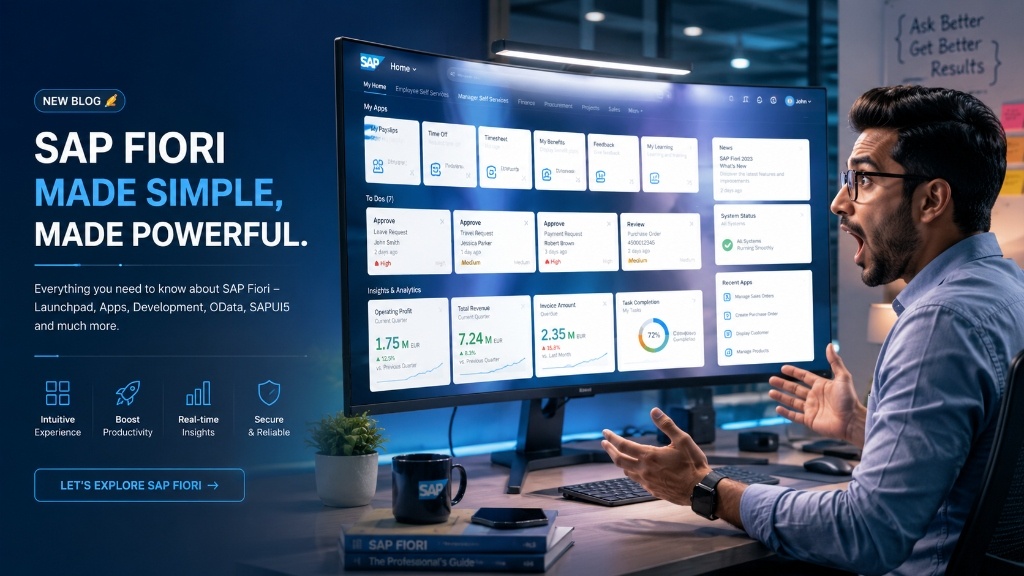 Figure 6: Dynamic tile layout configuration representing standard Catalogs and Groups.
Launchpad Configuration involves:
- Semantic Objects and Actions — Fiori uses a navigation concept based on semantic objects. A tile might navigate to semantic object “PurchaseOrder” with action “manage.” This abstraction means the same navigation intent can be resolved to different actual apps depending on user role and system configuration.
- Catalogs — groups of related apps bundled together. “Finance Apps Catalog” contains all finance-relevant tiles. Admins assign catalogs to roles.
- Groups — visual groupings of tiles on user’s home screen. Users can personalize their groups. Admins define default groups for roles.
- Target Mappings — links semantic object-action pairs to actual app component IDs. This is the configuration that makes “navigate to PurchaseOrder-manage” actually open the right app.
For S/4HANA Cloud — Launchpad configuration happens in SAP Fiori Launchpad Designer (transaction LPD_CUST or through Manage Launchpad Settings Fiori app).
For BTP-hosted Fiori apps — SAP Build Work Zone manages the launchpad experience.
Extending Standard SAP Fiori Apps — The Real Project Work
On most SAP implementation projects, developers don’t build Fiori apps from scratch. They extend standard SAP Fiori apps — adding fields, modifying behavior, adding custom sections, changing logic — while keeping the standard app as the foundation.
This is where the SAP clean core principle comes in. The goal is zero modification of standard SAP code with all customization through clean extension points.
 Figure 7: Extension paths from no-code Key User Adaptation to side-by-side BTP Custom apps.
Three Extension Approaches:
Key User Adaptation (No Code): Business users and key users can personalize Fiori apps using the built-in UI Adaptation mode — adding fields from backend, rearranging sections, hiding irrelevant elements, renaming labels. No developer needed. Changes persist per user or can be published for all users of that app. This handles 60-70% of typical business customization requests.
Developer Extension (Low Code / Pro Code): For requirements beyond key user adaptation — custom fields not in standard backend, custom sections with specific logic, additional action buttons — developers use the Fiori Extension framework. On BTP: Create an extension project in Business Application Studio, reference the standard app as base, override specific view fragments or controller methods, deploy the extension alongside the standard app.
Side-by-Side Custom App: For requirements at its core different from any standard app — completely custom Fiori app built from scratch, deployed on BTP, connected to S/4HANA through APIs. Zero core modification. Maximum flexibility. Used when standard Fiori doesn’t cover the use case (e.g. custom approval workflows, industry-specific operational apps).
Fiori Development Environment — Tools You Need
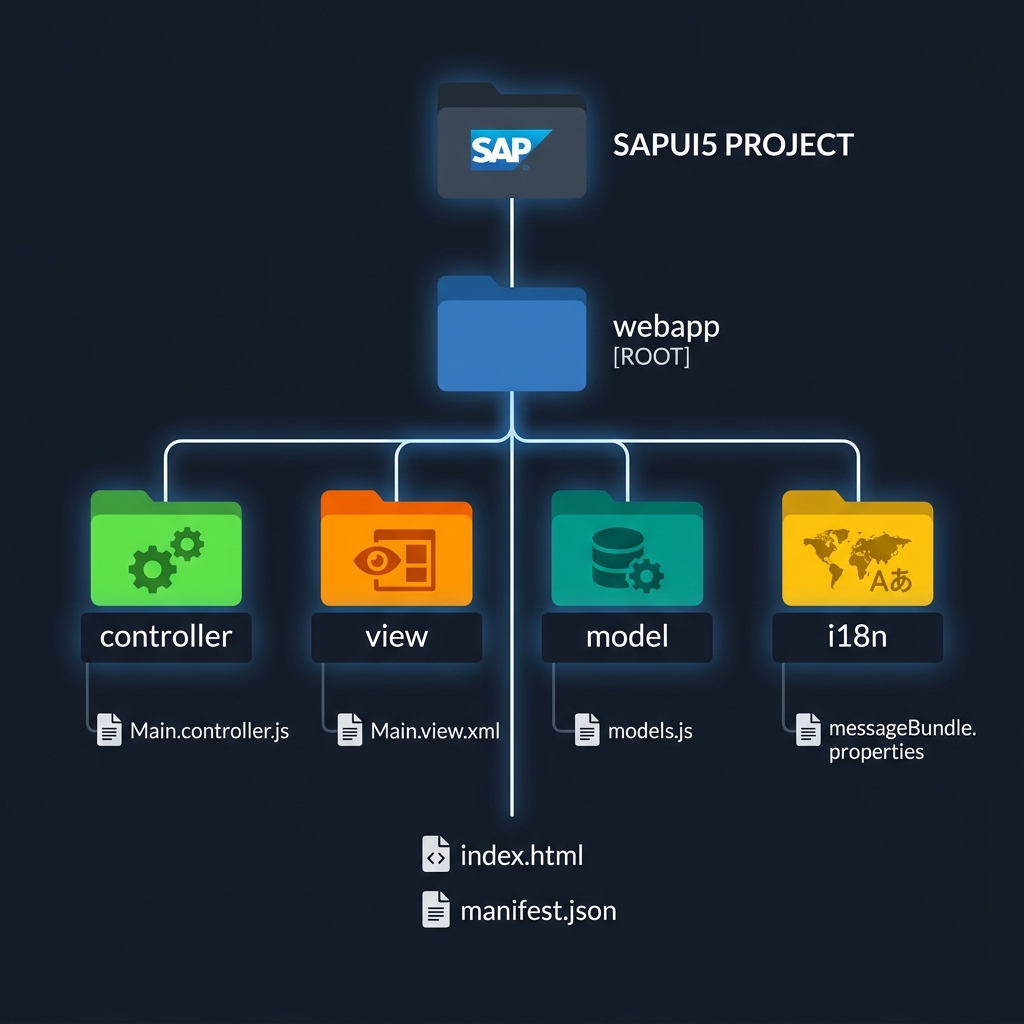 Figure 8: Development IDE setup showcasing Business Application Studio, Eclipse ADT, and Chrome UI5 Diagnostics.
- SAP Business Application Studio (BAS): Browser-based IDE — the primary development environment for all modern Fiori development. Pre-configured for SAPUI5, Fiori Elements, RAP. Runs on BTP.
- Eclipse with ADT (ABAP Development Tools): For RAP backend development — CDS views, behavior definitions, ABAP implementation classes. Desktop tool but connects to SAP system directly.
- Fiori Tools Extension for BAS / VS Code: SAP’s official plugin that dramatically accelerates Fiori Elements development — generates CDS annotations, creates OData service bindings, scaffolds complete Fiori Elements apps from backend metadata in minutes.
- SAP Mock Server: For frontend development without live SAP system access — local Node.js server that simulates OData responses. Enables complete frontend development before backend is ready.
- Chrome DevTools + SAPUI5 Diagnostics: Standard browser developer tools plus SAP’s built-in diagnostics tool (press
Ctrl+Alt+Shift+Sin any Fiori app) — essential for debugging.
Common Fiori Development Mistakes and How to Avoid Them
- Mistake 1: Building custom SAPUI5 when Fiori Elements would work. Custom SAPUI5 takes 5x longer to build and maintain than Fiori Elements for standard scenarios. Always evaluate Fiori Elements first.
- Mistake 2: Ignoring OData performance. Fiori apps fetching too much data make user experience terrible. Always use
$selectto fetch only needed fields,$filterto reduce result sets, and$top/$skipfor pagination. - Mistake 3: Not testing on mobile. Fiori apps must work on phones and tablets. A layout that looks perfect on desktop often breaks on small screens. Test responsiveness early.
- Mistake 4: Hardcoding text in views. All display text belongs in i18n properties files. Hardcoded English strings mean app can never be translated.
- Mistake 5: Skipping authorization check in CDS views.
@AccessControl.authorizationCheck: #NOT_REQUIREDin CDS views bypasses SAP authorization entirely. Always implement proper access control. - Mistake 6: Not using Fiori Launchpad navigation properly. Cross-app navigation in Fiori uses semantic object-based intent navigation — not hardcoded URLs.
SAP Fiori Developer Career Path — What the Market Looks Like
Let let explain specifically how different roles progress inside this specialization.
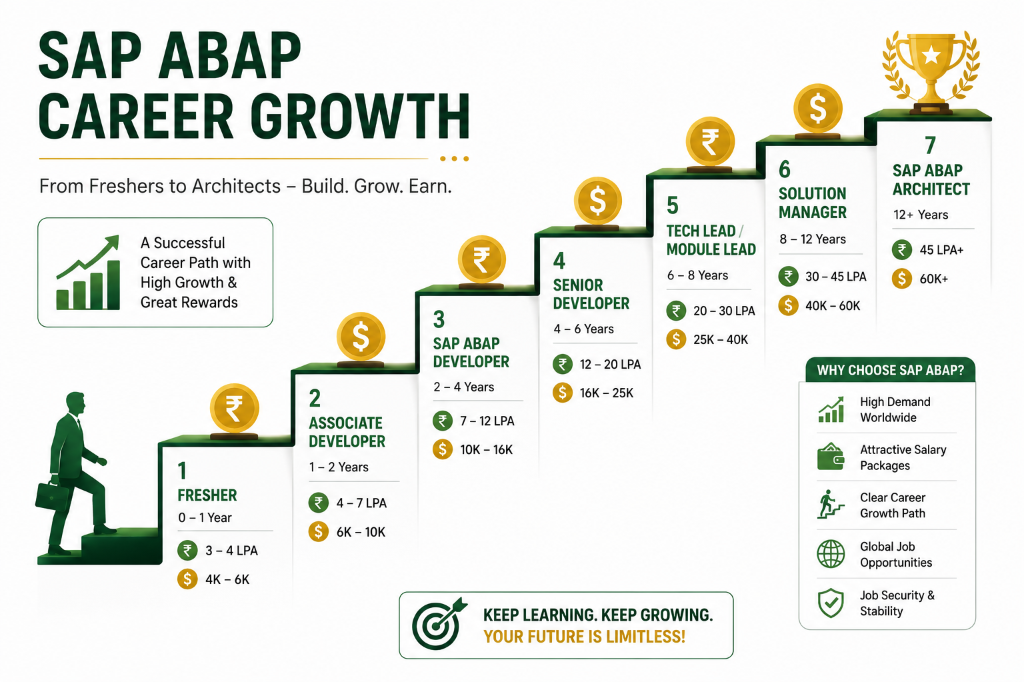 Figure 9: Fiori developer specializations, average salaries, and CTC growth trajectories in 2026.
Salary in India (2026 approximate):
| Level | Experience | CTC Range |
|---|---|---|
| Fresher / Junior | 0 – 2 years | ₹4 LPA – ₹10 LPA |
| Mid Level | 2 – 5 years | ₹10 LPA – ₹22 LPA |
| Senior Developer | 5 – 8 years | ₹22 LPA – ₹40 LPA |
| Fiori Architect | 8+ years | ₹40 LPA – ₹75+ LPA |
Free Resources to Learn Fiori Development Right Now
- SAP Business Application Studio Free Tier — go.sap.com/developer → BTP trial → activate BAS. Full development environment in browser.
- ui5.sap.com — official SAPUI5 documentation, walkthrough tutorial, Demo Kit with every control.
- SAP Learning Site — learning.sap.com → search “Fiori” → free learning journeys covering Fiori basics through advanced development.
- SAP Developers YouTube Channel — search “Fiori Elements tutorial” and “RAP tutorial” — dozens of complete hands-on sessions.
- SAP Business Accelerator Hub — api.sap.com → explore pre-built OData services and standard Fiori app metadata.
The Bigger Picture
Fiori development sits at the intersection of everything modern SAP is becoming. It touches ABAP through RAP. It touches BTP through deployment and services. It touches Integration Suite through data connectivity. It touches Joule through the interface layer. It touches Analytics Cloud through embedded dashboards.
A developer who truly understands Fiori — frontend, backend, deployment, extension, performance — can contribute meaningfully to almost any aspect of a modern SAP project. That versatility is genuinely rare and genuinely valued.
The barrier to entry keeps dropping — Fiori Elements, RAP generators, BAS templates — more and more gets automated. But deep understanding of why things work, how to troubleshoot when they don’t, and how to architect scalable solutions — that knowledge doesn’t get automated.
Build something real. One complete app — CDS view, behavior definition, OData service, Fiori Elements frontend, deployed on BTP. Start to finish. That one exercise teaches more than months of watching tutorials.
Keep building. Keep learning.
 Figure 10: Building high-performance Fiori app interfaces to elevate corporate software experiences.
— Daksh
Self-Assessment Checkpoint
💡 **What is the difference between a Worklist and a List Report floorplan?**
A List Report has a comprehensive filter bar (smart filter bar) with multiple selection fields, search helps, and a large query structure. A Worklist is a simplified list table used for immediate processing of a specific user task queue, containing minimal filter options.
💡 **What does the '@UI' annotation in CDS views do?**
@UI annotations are configuration tags placed in ABAP CDS data models. The Fiori Elements frontend framework reads these metadata tags at runtime (via OData metadata document) and renders corresponding visual items like table columns (@UI.lineItem) or filter inputs (@UI.selectionField) without any custom JavaScript views.
💡 **How is a Fiori application extended safely without modifying SAP standard code?**
Fiori extensions use the extension repository. Developers use extension projects in SAP BAS to implement visual extension points (view extensions, controller extensions, or lifecycle hooks) that overlay the standard app at runtime, keeping the core system upgrade-safe.

Written by Daksh Dedha
SAP Technical ConsultantDaksh is an SAP Technical Consultant specializing in ABAP programming, SAP S/4HANA migrations, Fiori development, and BTP cloud architecture. He authors free, hands-on tutorials to make enterprise SAP education accessible to all developers.
Test Your Knowledge
Loading question...
Quiz Completed
Related Tutorials
SAP Fiori End to End Implementation — From Backend to Launchpad in Plain Steps
Complete SAP Fiori end to end implementation guide. Covers backend activation, OData service setup, Fiori Launchpad configuration, role assignment, and testing.
SAP FioriSAP Fiori Launchpad Configuration — Complete Setup and Customization Guide
Step by step guide to SAP Fiori Launchpad configuration. Learn how to set up catalogs, groups, spaces, pages, custom tiles, and role-based access in FLP.
SAP FioriTop 30 SAP SD Interview Questions & Answers – Complete Guide
Master your next SAP Sales and Distribution (SD) functional interview. Study core concepts, the OTC cycle, Pricing Procedures, and logistics configuration.
Found this tutorial useful? Share it with your SAP development team.