
SAP Fiori Launchpad Configuration — Complete Setup and Customization Guide
Table of Contents
- • The 3 layers of Launchpad configuration
- • Layer 1: Target mappings — connecting tiles to apps
- ↳ Creating a custom target mapping
- • Layer 2: Catalogs — controlling access
- ↳ SAP-delivered vs custom catalogs
- ↳ Creating a custom catalog
- ↳ Assigning the catalog to a role
- • Layer 3: Groups and Spaces/Pages — visual layout
- ↳ Classic model: Groups
- ↳ Creating a custom group
- ↳ Newer model: Spaces and Pages
- ↳ Creating Spaces and Pages
- • Dynamic tiles — showing live data
- • Running SAP GUI transactions in the Launchpad
- ↳ How to set it up
- • Quick checkpoint
- • Common mistakes
- • Design principles for a good Launchpad
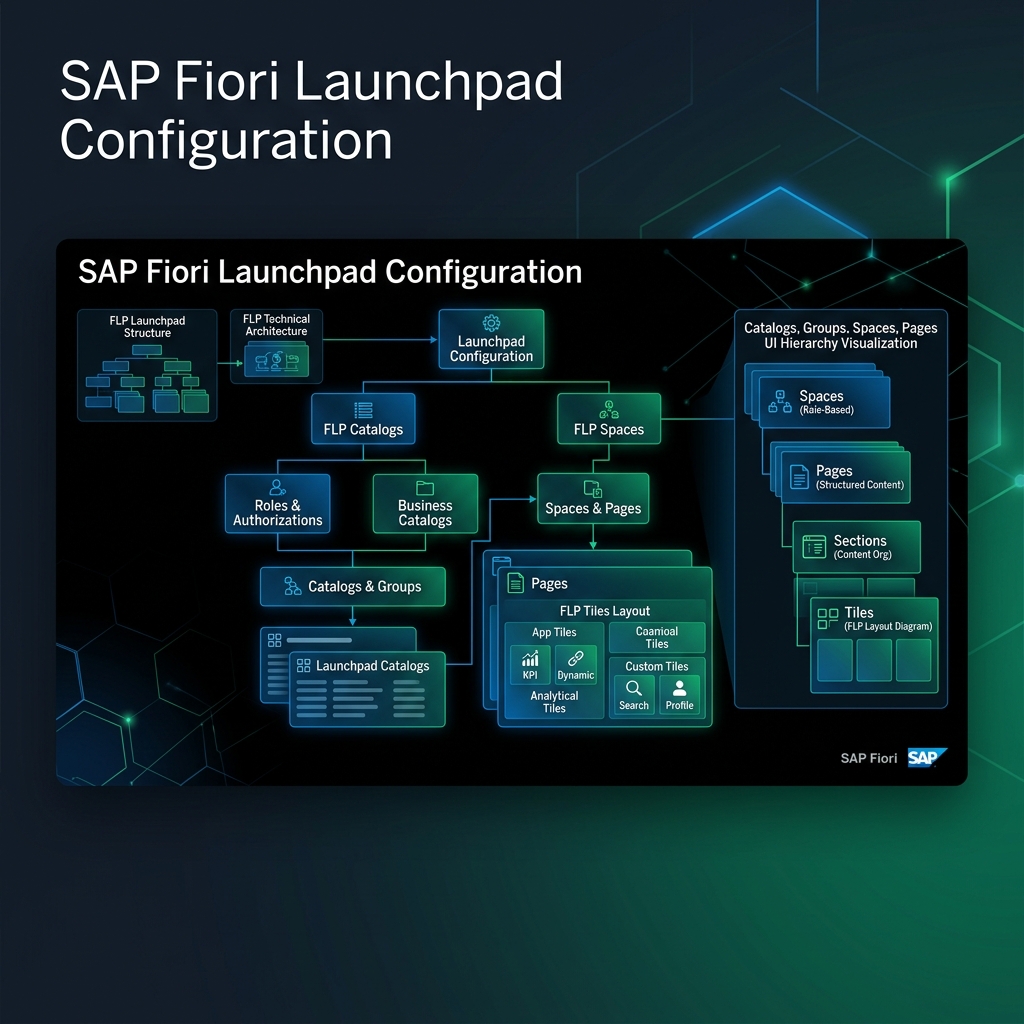
The Fiori Launchpad is the first thing users see when they log into SAP. And honestly, most implementations I’ve seen get it wrong. Tiles thrown together randomly. 40 apps on a single homepage with no logical grouping. Users scrolling endlessly to find the one transaction they use 30 times a day.
The Launchpad is configurable. Very configurable. But almost nobody takes the time to set it up properly because the configuration model (catalogs, groups, spaces, pages, target mappings) feels complicated at first glance.
It’s not complicated. It’s just layered. Once you understand the 3 layers, everything clicks.
This post walks through the complete Fiori Launchpad configuration from scratch. I’ll cover the traditional catalog/group model and the newer spaces/pages model. By the end, you’ll be able to design and build a Launchpad layout that makes sense for your users.
The 3 layers of Launchpad configuration
Everything in FLP configuration comes down to 3 questions:
- What apps exist? → Target Mappings (the link between a tile and the actual app)
- Who can see them? → Catalogs (collections of apps assigned via roles)
- Where do they appear on screen? → Groups or Spaces/Pages (the visual layout)
That’s it. Three layers. Everything else is detail under these three.
Layer 1: Target mappings — connecting tiles to apps
A target mapping tells the Launchpad: “When a user clicks this tile, open this specific app.”
Every target mapping has 3 components:
| Component | What it does | Example |
|---|---|---|
| Semantic Object | A business concept (like “PurchaseOrder”) | PurchaseOrder |
| Action | What to do with that concept (“display”, “manage”, “create”) | manage |
| Application | The technical SAPUI5 application to launch | PurchaseOrder-manage → launches the Manage Purchase Orders Fiori app |
So when a user clicks the “Manage Purchase Orders” tile, the Launchpad resolves PurchaseOrder-manage to a specific SAPUI5 app URL and opens it.
SAP delivers thousands of standard target mappings. You’ll typically configure custom target mappings when:
- You’ve built a custom Fiori app and need to register it in the Launchpad
- You want to create a tile that opens a classic SAP GUI transaction (yes, you can run GUI transactions inside FLP)
- You need to link to an external URL
Creating a custom target mapping
Transaction: /UI2/FLPCM_CUST (FLP Content Manager — Customizing) or the newer Manage Launchpad Pages app in S/4HANA.
In the content manager:
- Go to the Target Mappings section.
- Click Create.
- Fill in:
- Semantic Object: e.g.,
ZCustomReport - Action: e.g.,
display - Application Type:
- SAPUI5 Fiori App — for UI5 apps
- SAP GUI Transaction — for classic transactions like VA01, ME21N
- URL — for external links
- Semantic Object: e.g.,
- For a GUI transaction, enter the transaction code (e.g.,
VA01) and check SAP GUI for HTML to run it in the browser. - Save.
Layer 2: Catalogs — controlling access
A catalog is a collection of tiles and target mappings. You assign catalogs to PFCG roles. Users who have the role get the catalog. Users who don’t have the role don’t see those tiles.
Think of a catalog as a permissions group. The catalog named SAP_MM_BC_PO_MANAGE_PC contains all the Purchase Order management tiles. If your PFCG role includes this catalog, you can see and use those PO apps.
SAP-delivered vs custom catalogs
SAP delivers hundreds of standard catalogs. Their naming convention:
SAP_<MODULE>_BC_<FUNCTION>_PCSAP_MM_BC_PO_MANAGE_PC— MM Purchase Order managementSAP_FI_BC_GL_DISPLAY_PC— FI General Ledger displaySAP_SD_BC_SO_MANAGE_PC— SD Sales Order management
You should not modify SAP’s standard catalogs. If you need to add or remove tiles from a catalog, create a custom catalog (prefix with Z or your company prefix) and add the tiles you want.
Creating a custom catalog
In /UI2/FLPCM_CUST:
- Go to the Catalogs section.
- Click Create.
- Give it an ID:
Z_MM_CUSTOM_CATALOG - Give it a title: “Custom MM Procurement Apps”
- Add tiles to the catalog by referencing target mappings.
To add a tile:
- Inside the catalog, click Add Tile.
- Select the target mapping (e.g.,
PurchaseOrder-manage). - Configure the tile appearance:
- Tile Type: Static, Dynamic, or KPI
- Title: “Manage Purchase Orders”
- Subtitle: Optional descriptive text
- Icon: Choose from SAP’s icon library (e.g.,
sap-icon://cart) - Size: 1x1 (standard) or 2x1 (wide)
Dynamic tiles show a live count (like “23 pending approvals”). These require a specific OData service endpoint that returns the count. Static tiles just show the title and icon.
Assigning the catalog to a role
Transaction: PFCG
- Open your role (or create a new one).
- Go to the Menu tab.
- Click SAP Fiori Launchpad → Catalogs → select your custom catalog.
- Generate the authorization profile.
- Assign users.
Any user with this role will now see the tiles from your custom catalog in their Launchpad.
Layer 3: Groups and Spaces/Pages — visual layout
This is where you control what the user’s Launchpad homepage actually looks like.
SAP offers two layout models. Understanding which one your system uses matters because they work differently.
Classic model: Groups
Groups are horizontal sections on the Launchpad homepage. Each group has a title and contains tiles arranged left to right.
┌──────────────────────────────────────────────┐
│  My Home                                      │
├──────────────────────────────────────────────┤
│  [Purchase Orders]                            │
│  ┌────────┐ ┌────────┐ ┌────────┐            │
│  │Manage  │ │Create  │ │Monitor │            │
│  │  POs   │ │  PO    │ │  POs   │            │
│  └────────┘ └────────┘ └────────┘            │
│                                               │
│  [Finance]                                    │
│  ┌────────┐ ┌────────┐                        │
│  │Post    │ │Display │                        │
│  │Journal │ │Balance │                        │
│  └────────┘ └────────┘                        │
└──────────────────────────────────────────────┘
In this example, “Purchase Orders” and “Finance” are groups. Each group holds tiles from the catalogs the user has access to.
Groups are also assigned via PFCG roles (similar to catalogs). But here’s the key difference: a catalog controls IF a user CAN access an app. A group controls WHERE the app appears on their homepage.
A tile can exist in a catalog without being in any group. The user can still find it via the Launchpad search, but it won’t appear on the homepage.
Creating a custom group
In /UI2/FLPCM_CUST:
- Go to Groups.
- Click Create.
- ID:
Z_MM_PO_GROUP - Title: “Purchase Orders”
- Add tiles to the group by referencing the same target mappings used in the catalog.
- Assign the group to a PFCG role.
Newer model: Spaces and Pages
Starting from S/4HANA 2020 FPS01, SAP introduced Spaces and Pages as the next evolution of Launchpad layout. Many S/4HANA 2023 and 2025 systems use this by default.
Space: A top-level navigation item in the left sidebar of the Launchpad. Think of it as a tab or workspace. A user might have spaces for “Procurement,” “Finance,” “HR.”
Page: The content that appears when a user clicks a Space. A page is a canvas where you can arrange tiles in sections.
┌─────────┬───────────────────────────────────┐
│ Spaces  │  Procurement (Page)               │
│         │                                    │
│ Procure │  [Purchase Orders]                 │
│ Finance │  ┌────────┐ ┌────────┐ ┌────────┐ │
│ HR      │  │Manage  │ │Create  │ │Monitor │ │
│ Reports │  │  POs   │ │  PO    │ │  POs   │ │
│         │  └────────┘ └────────┘ └────────┘ │
│         │                                    │
│         │  [Contracts]                        │
│         │  ┌────────┐ ┌────────┐             │
│         │  │Manage  │ │Create  │             │
│         │  │Contract│ │Contract│             │
│         │  └────────┘ └────────┘             │
└─────────┴───────────────────────────────────┘
Spaces and Pages give you much better organization than the flat group model. Users don’t see a single long homepage with every tile. They navigate between workspaces (Spaces) and each workspace shows only the relevant tiles (Page).
Creating Spaces and Pages
In S/4HANA, use the Manage Launchpad Spaces and Manage Launchpad Pages apps (available in the Launchpad itself if you have admin access).
-
Create a Page:
- Go to Manage Launchpad Pages → Create.
- Title: “Procurement Dashboard”
- Add sections: “Purchase Orders,” “Contracts,” “Supplier Management”
- Within each section, add tiles by searching for the target mapping.
-
Create a Space:
- Go to Manage Launchpad Spaces → Create.
- Title: “Procurement”
- Assign the page you just created to this space.
-
Assign to a Role:
- Go to Manage Launchpad Settings (or use PFCG).
- Assign the Space to a Business Role.
Users with that role will see “Procurement” in their left navigation, and clicking it shows the procurement page with its organized sections and tiles.
Dynamic tiles — showing live data
Dynamic tiles display a number or text that updates from a live OData service. The classic example: a tile that says “Manage Purchase Orders” with a count badge showing “23” (meaning 23 POs need attention).
To configure a dynamic tile:
- In the catalog tile configuration, set the tile type to Dynamic.
- Specify the Service URL — this is an OData endpoint that returns a count. For SAP standard apps, this URL is documented in the Fiori Apps Library.
- The format is usually:
/sap/opu/odata/sap/<SERVICE>/GetCount?$filter=<conditions> - Set the Refresh Interval (in seconds). 300 seconds (5 minutes) is reasonable.
The tile will call this OData endpoint periodically and display the returned count on the tile face.
If the OData service is down or the user lacks authorization, the tile shows the last known count or no number at all. It doesn’t break the tile — the user can still click it and open the app.
Running SAP GUI transactions in the Launchpad
Yes, you can run classic SAP GUI transactions inside the Fiori Launchpad. SAP calls this “SAP GUI for HTML” or “GUI embedding.”
This is useful during migration phases when you’re moving to Fiori gradually. Users get the Fiori Launchpad as their homepage, but some tiles open classic ABAP transactions that haven’t been replaced by Fiori apps yet.
How to set it up
- Create a target mapping in /UI2/FLPCM_CUST:
- Semantic Object:
ZTransaction(or whatever naming makes sense) - Action:
display - Application Type: Transaction
- Transaction Code:
VA01(or any t-code)
- Semantic Object:
- Create a tile in a catalog that points to this target mapping.
- In SICF, make sure the WebGUI ICF service is active:
/sap/bc/gui/sap/its/webgui
When a user clicks the tile, the classic SAP GUI transaction opens inside a browser window within the Launchpad frame. It looks like SAP GUI running in a web browser tab. Not as pretty as a Fiori app, but functional.
Quick checkpoint
Question 1: You created a custom catalog with 5 tiles and assigned it to a PFCG role. Users can search for the apps in the Launchpad but don’t see them on the homepage. What’s missing?
Answer: You created a catalog but no group (or space/page). Catalogs control access. Groups/pages control homepage layout. Create a group with those 5 tiles and assign it to the same role.
Question 2: A dynamic tile shows no count number, just the title. What should you check?
Answer: Check that the OData service URL configured on the tile is correct and reachable. Test the URL directly in a browser. Also verify the user has authorization to call that OData service.
Question 3: Your client wants to run ME21N (Create Purchase Order) in the Fiori Launchpad until the Fiori equivalent is ready. Is this possible?
Answer: Yes. Create a target mapping with Application Type “Transaction” and Transaction Code “ME21N.” The classic GUI transaction will run inside the browser within the Launchpad.
Common mistakes
Mistake 1: Modifying SAP standard catalogs. During upgrades, SAP may overwrite standard catalogs with new content. Your changes get lost. Always create Z-custom catalogs and add your customizations there.
Mistake 2: Creating too many tiles on the homepage. I’ve seen implementations with 60+ tiles on a single homepage. Users can’t find anything. Use groups or spaces to organize tiles logically. No group should have more than 8-10 tiles. If a user needs 60 apps, they need 6-8 well-organized groups, not one giant pile.
Mistake 3: Forgetting the authorization profile generation. After adding catalogs and groups to a PFCG role, you must generate the authorization profile and run user comparison. Without this, the role assignment exists but the authorizations aren’t active.
Mistake 4: Not testing with a real business user. Admin accounts with SAP_ALL see everything. Test with a user who has only the specific role. That’s the only way to validate that your catalog, group, and authorization setup is correct.
Mistake 5: Mixing the classic Group model and the new Spaces/Pages model. In S/4HANA systems where Spaces/Pages are enabled, the classic Group model may be partially or fully deprecated. Check your system settings (/UI2/FLP_SYS_CONF) to see which mode is active. Don’t configure groups if your system uses spaces.
Design principles for a good Launchpad
A few things I’ve learned from watching real users interact with the Launchpad:
Organize by task, not by SAP module. Users don’t think in terms of “MM” and “FI.” They think “I need to approve purchase orders” and “I need to check vendor invoices.” Name your groups and spaces around what people DO, not which SAP module it falls under.
Put the most-used tiles first. Track which apps get clicked the most (Fiori Usage Analytics can help with this). Put those tiles in the first visible group/section. Users shouldn’t have to scroll to find their daily-driver apps.
Use dynamic tiles for items that need attention. “15 pending approvals” on a tile face tells the user something needs action. Static tiles that just say “Approvals” give no indication. Where a dynamic tile is available, use it.
Limit the homepage to what the user needs daily. Everything else should be findable via search. The Launchpad has a powerful app finder. Users can search for any app in their catalogs. Not every app needs a homepage tile.
Related reads on this site:
- SAP Fiori End to End Implementation — activating OData, ICF, and deploying apps
- SAP Fiori Elements Tutorial — building Fiori apps with code-free annotations
- SAP Fiori Development Complete Guide — custom Fiori app development

Written by Daksh Dedha
SAP Technical ConsultantDaksh is an SAP Technical Consultant specializing in ABAP programming, SAP S/4HANA migrations, Fiori development, and BTP cloud architecture. He authors free, hands-on tutorials to make enterprise SAP education accessible to all developers.
Test Your Knowledge
Loading question...
Quiz Completed
Related Tutorials
SAP Fiori End to End Implementation — From Backend to Launchpad in Plain Steps
Complete SAP Fiori end to end implementation guide. Covers backend activation, OData service setup, Fiori Launchpad configuration, role assignment, and testing.
SAP FioriTop 30 SAP SD Interview Questions & Answers – Complete Guide
Master your next SAP Sales and Distribution (SD) functional interview. Study core concepts, the OTC cycle, Pricing Procedures, and logistics configuration.
SAP FioriTop 50 SAP Fiori Interview Questions (With Answers) – Complete Guide
Master your next SAP Fiori job interview with this complete guide of 50 questions covering basic principles, architecture, Fiori Elements, OData, and
Found this tutorial useful? Share it with your SAP development team.